").attr(n.scriptAttrs||{}).prop({charset:n.scriptCharset,src:n.url}).on("load error",i=function(e){r.remove(),i=null,e&&t("error"===e.type?404:200,e.type)}),C.head.appendChild(r[0])},abort:function(){i&&i()}}});var Jt,Kt=[],Zt=/(=)\?(?=&|$)|\?\?/;ce.ajaxSetup({jsonp:"callback",jsonpCallback:function(){var e=Kt.pop()||ce.expando+"_"+jt.guid++;return this[e]=!0,e}}),ce.ajaxPrefilter("json jsonp",function(e,t,n){var r,i,o,a=!1!==e.jsonp&&(Zt.test(e.url)?"url":"string"==typeof e.data&&0===(e.contentType||"").indexOf("application/x-www-form-urlencoded")&&Zt.test(e.data)&&"data");if(a||"jsonp"===e.dataTypes[0])return r=e.jsonpCallback=v(e.jsonpCallback)?e.jsonpCallback():e.jsonpCallback,a?e[a]=e[a].replace(Zt,"$1"+r):!1!==e.jsonp&&(e.url+=(At.test(e.url)?"&":"?")+e.jsonp+"="+r),e.converters["script json"]=function(){return o||ce.error(r+" was not called"),o[0]},e.dataTypes[0]="json",i=ie[r],ie[r]=function(){o=arguments},n.always(function(){void 0===i?ce(ie).removeProp(r):ie[r]=i,e[r]&&(e.jsonpCallback=t.jsonpCallback,Kt.push(r)),o&&v(i)&&i(o[0]),o=i=void 0}),"script"}),le.createHTMLDocument=((Jt=C.implementation.createHTMLDocument("").body).innerHTML="
",2===Jt.childNodes.length),ce.parseHTML=function(e,t,n){return"string"!=typeof e?[]:("boolean"==typeof t&&(n=t,t=!1),t||(le.createHTMLDocument?((r=(t=C.implementation.createHTMLDocument("")).createElement("base")).href=C.location.href,t.head.appendChild(r)):t=C),o=!n&&[],(i=w.exec(e))?[t.createElement(i[1])]:(i=Ae([e],t,o),o&&o.length&&ce(o).remove(),ce.merge([],i.childNodes)));var r,i,o},ce.fn.load=function(e,t,n){var r,i,o,a=this,s=e.indexOf(" ");return-1").append(ce.parseHTML(e)).find(r):e)}).always(n&&function(e,t){a.each(function(){n.apply(this,o||[e.responseText,t,e])})}),this},ce.expr.pseudos.animated=function(t){return ce.grep(ce.timers,function(e){return t===e.elem}).length},ce.offset={setOffset:function(e,t,n){var r,i,o,a,s,u,l=ce.css(e,"position"),c=ce(e),f={};"static"===l&&(e.style.position="relative"),s=c.offset(),o=ce.css(e,"top"),u=ce.css(e,"left"),("absolute"===l||"fixed"===l)&&-1<(o+u).indexOf("auto")?(a=(r=c.position()).top,i=r.left):(a=parseFloat(o)||0,i=parseFloat(u)||0),v(t)&&(t=t.call(e,n,ce.extend({},s))),null!=t.top&&(f.top=t.top-s.top+a),null!=t.left&&(f.left=t.left-s.left+i),"using"in t?t.using.call(e,f):c.css(f)}},ce.fn.extend({offset:function(t){if(arguments.length)return void 0===t?this:this.each(function(e){ce.offset.setOffset(this,t,e)});var e,n,r=this[0];return r?r.getClientRects().length?(e=r.getBoundingClientRect(),n=r.ownerDocument.defaultView,{top:e.top+n.pageYOffset,left:e.left+n.pageXOffset}):{top:0,left:0}:void 0},position:function(){if(this[0]){var e,t,n,r=this[0],i={top:0,left:0};if("fixed"===ce.css(r,"position"))t=r.getBoundingClientRect();else{t=this.offset(),n=r.ownerDocument,e=r.offsetParent||n.documentElement;while(e&&(e===n.body||e===n.documentElement)&&"static"===ce.css(e,"position"))e=e.parentNode;e&&e!==r&&1===e.nodeType&&((i=ce(e).offset()).top+=ce.css(e,"borderTopWidth",!0),i.left+=ce.css(e,"borderLeftWidth",!0))}return{top:t.top-i.top-ce.css(r,"marginTop",!0),left:t.left-i.left-ce.css(r,"marginLeft",!0)}}},offsetParent:function(){return this.map(function(){var e=this.offsetParent;while(e&&"static"===ce.css(e,"position"))e=e.offsetParent;return e||J})}}),ce.each({scrollLeft:"pageXOffset",scrollTop:"pageYOffset"},function(t,i){var o="pageYOffset"===i;ce.fn[t]=function(e){return M(this,function(e,t,n){var r;if(y(e)?r=e:9===e.nodeType&&(r=e.defaultView),void 0===n)return r?r[i]:e[t];r?r.scrollTo(o?r.pageXOffset:n,o?n:r.pageYOffset):e[t]=n},t,e,arguments.length)}}),ce.each(["top","left"],function(e,n){ce.cssHooks[n]=Ye(le.pixelPosition,function(e,t){if(t)return t=Ge(e,n),_e.test(t)?ce(e).position()[n]+"px":t})}),ce.each({Height:"height",Width:"width"},function(a,s){ce.each({padding:"inner"+a,content:s,"":"outer"+a},function(r,o){ce.fn[o]=function(e,t){var n=arguments.length&&(r||"boolean"!=typeof e),i=r||(!0===e||!0===t?"margin":"border");return M(this,function(e,t,n){var r;return y(e)?0===o.indexOf("outer")?e["inner"+a]:e.document.documentElement["client"+a]:9===e.nodeType?(r=e.documentElement,Math.max(e.body["scroll"+a],r["scroll"+a],e.body["offset"+a],r["offset"+a],r["client"+a])):void 0===n?ce.css(e,t,i):ce.style(e,t,n,i)},s,n?e:void 0,n)}})}),ce.each(["ajaxStart","ajaxStop","ajaxComplete","ajaxError","ajaxSuccess","ajaxSend"],function(e,t){ce.fn[t]=function(e){return this.on(t,e)}}),ce.fn.extend({bind:function(e,t,n){return this.on(e,null,t,n)},unbind:function(e,t){return this.off(e,null,t)},delegate:function(e,t,n,r){return this.on(t,e,n,r)},undelegate:function(e,t,n){return 1===arguments.length?this.off(e,"**"):this.off(t,e||"**",n)},hover:function(e,t){return this.on("mouseenter",e).on("mouseleave",t||e)}}),ce.each("blur focus focusin focusout resize scroll click dblclick mousedown mouseup mousemove mouseover mouseout mouseenter mouseleave change select submit keydown keypress keyup contextmenu".split(" "),function(e,n){ce.fn[n]=function(e,t){return 0
Ping Tracer 2.0.2
ネットワーク
2021/03/09 16:31
説明機能仕様ダウンロード画像使い方
サーバの接続を監視して、Ping の状態をグラフ表示する Ping ツール
PC とホスト間の接続の問題の原因を特定するのに役立つ、Windows 向けの Ping ツール。グラフで Ping の応答の状態を把握することができるのが特徴で、トレースルートを実行して複数のホストを同時に監視することもできます。
Ping Tracer の概要
Ping Tracer は、コンピュータと特定の宛先の間の各ネットワークホストに継続的に ping を実行し、接続の問題の原因を特定するのに役立つプログラムです。
Ping Tracer の機能
Ping Tracer で利用できる主な機能の一覧です。
| 機能 |
概要 |
| メイン機能 |
Ping 送信 |
| 機能詳細 |
・Ping の状態をグラフ表示
・トレースルートを実行して複数の宛先を監視 |
| オプション機能 |
・パケットロスの割合を表示
・平均応答時間を表示
・最短/最長応答時間を表示
・グラフを画像で保存 |
Ping の状態を分かりやすくグラフで表示します
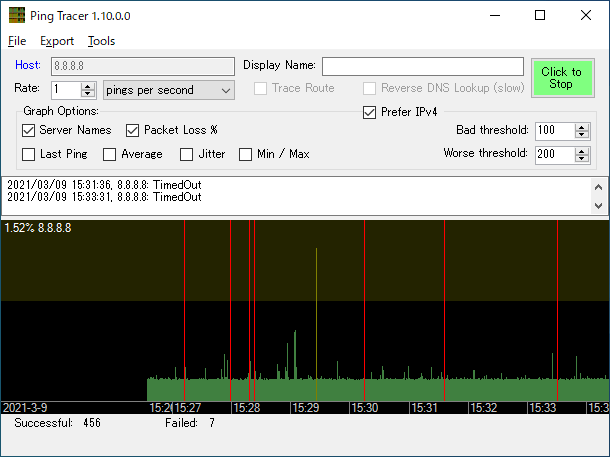
Ping Tracer は、接続の問題の原因を視覚的に判断するのに役立つ Ping ユーティリティです。
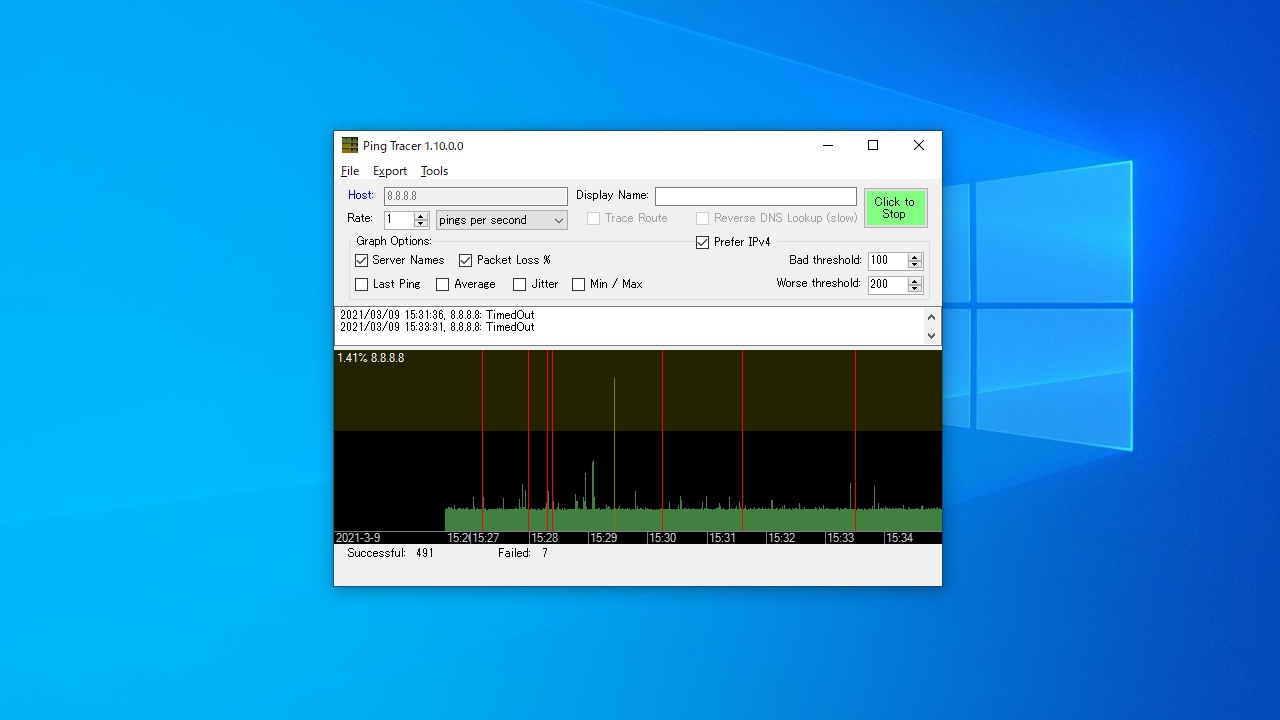
Ping の応答時間と時間の経過がグラフで表示され、パケット損失した場合は赤、遅延がある場合は黄色で表示されます。パケットロスの割合や Ping の応答時間などをグラフに表示することができ、グラフのスナップショットを画像ファイルにエクスポートできます。
実用的な Ping アプリケーション
Ping Tracer は、サーバへの接続を監視して、ラグが発生したときに原因がサーバー側かルーター側か、またはどのサーバーにあるかといった詳しい原因を知ることができる便利な Ping アプリケーションです。
機能
- Ping の状態をグラフ表示
- トレースルートを実行して複数の宛先を監視
- パケットロスの割合をグラフに表示
- 平均応答時間をグラフに表示
- 最短/最長応答時間をグラフに表示
- グラフを画像で保存
価格:無料
動作環境:Windows 7|8|8.1|10|11
使用言語:英語
最終更新日:
3週間前 (2026/04/13)
ダウンロード数:932
使い方
インストール
1.インストール方法
Ping Tracer はインストール不要で使用できます。
- ダウンロードした ZIP ファイルを解凍し、「PingTracer.exe」ファイルを実行するとアプリを起動できます。

基本的な使い方
1.基本的な使い方
- 「Host」にホスト名または IP アドレスを入力します。
- トレースルートを実行して複数の宛先を監視する場合は「Trace Route」を有効にします。
- そのほかのオプションを選択します(※ 説明は画像の下)
- [Click to Start]ボタンをクリックすると、Ping の送信が開始します。
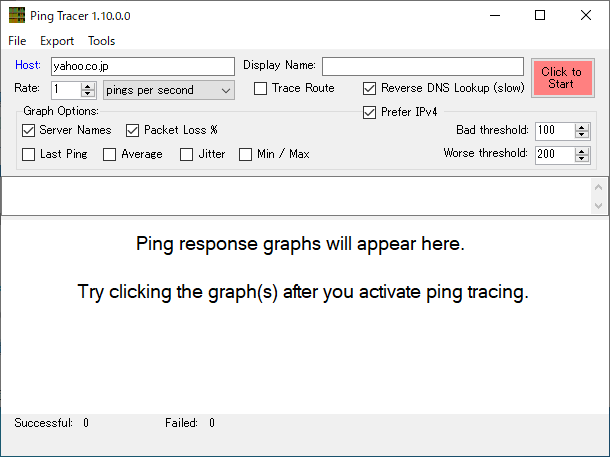
・Host:監視する宛先の IP アドレスまたはホスト名を入力します。青い Host の文字をクリックすると、以前に入力した宛先を選択できます
・Display Name:青い Host の文字をクリックしたときに履歴に表示される覚えやすい名前(オプション)
・Rate:Ping を送信する間隔
・Trace Route:トレースルートを実行して、複数の宛先を監視する
・Reverse DNS Lookup (slow):ホスト名を見つけるために、各 IP アドレスで DNS 逆引きを実行する
・Prefer IPv4:IPv4 を優先する
Graph Options:
・Server Names:各サーバーの名前/アドレスをグラフにオーバーレイ表示する
・Packet Loss %:パケット損失のパーセンテージをグラフにオーバーレイ表示する
・Last Ping:最新の ping 応答時間をグラフにオーバーレイ表示する
・Average:ping の平均応答時間をグラフにオーバーレイ表示する
・Jitter:ジッター(表示されている ping 時間全体)をグラフにオーバーレイ表示する
・Min / Max:最短および最長の ping 時間をグラフにオーバーレイ表示する
・Bad threshold:このしきい値を超えた ping は色あせた黄色で表示されます
・Worse threshold:このしきい値を超えた ping は明るい黄色で表示されます
- 送信中(監視中)の画面です。[Click to Stop]を押すと停止できます。
- グラフ部分をクリックすると、グラフのみが表示されます。

メニュー
1.File
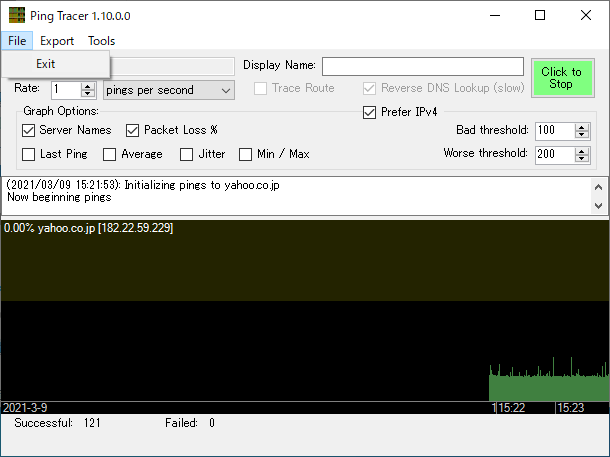
・Exit:プログラムを終了します
2.Export メニュー
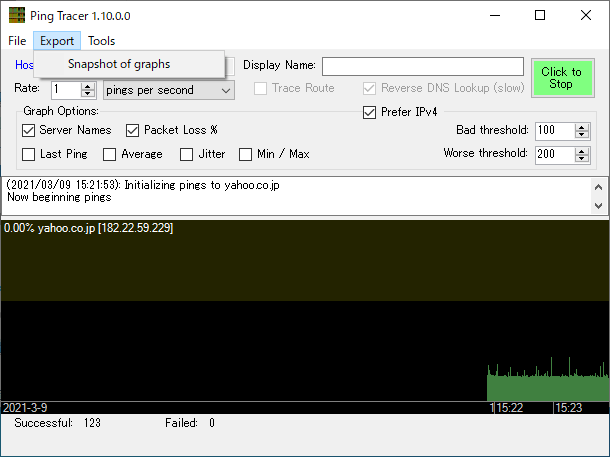
・Snapshot of graphs:グラフの画面を画像ファイルに保存する
3.Tools メニュー
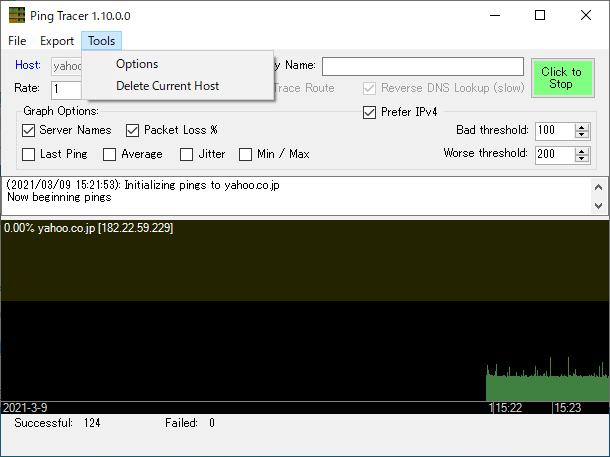
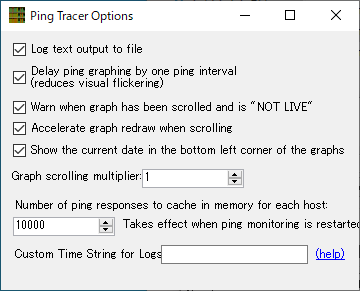
・Options:設定画面を開く
・Delete Current Host:現在のホストを削除する
よくある質問と回答
ライセンスについて。