").attr(n.scriptAttrs||{}).prop({charset:n.scriptCharset,src:n.url}).on("load error",i=function(e){r.remove(),i=null,e&&t("error"===e.type?404:200,e.type)}),C.head.appendChild(r[0])},abort:function(){i&&i()}}});var Jt,Kt=[],Zt=/(=)\?(?=&|$)|\?\?/;ce.ajaxSetup({jsonp:"callback",jsonpCallback:function(){var e=Kt.pop()||ce.expando+"_"+jt.guid++;return this[e]=!0,e}}),ce.ajaxPrefilter("json jsonp",function(e,t,n){var r,i,o,a=!1!==e.jsonp&&(Zt.test(e.url)?"url":"string"==typeof e.data&&0===(e.contentType||"").indexOf("application/x-www-form-urlencoded")&&Zt.test(e.data)&&"data");if(a||"jsonp"===e.dataTypes[0])return r=e.jsonpCallback=v(e.jsonpCallback)?e.jsonpCallback():e.jsonpCallback,a?e[a]=e[a].replace(Zt,"$1"+r):!1!==e.jsonp&&(e.url+=(At.test(e.url)?"&":"?")+e.jsonp+"="+r),e.converters["script json"]=function(){return o||ce.error(r+" was not called"),o[0]},e.dataTypes[0]="json",i=ie[r],ie[r]=function(){o=arguments},n.always(function(){void 0===i?ce(ie).removeProp(r):ie[r]=i,e[r]&&(e.jsonpCallback=t.jsonpCallback,Kt.push(r)),o&&v(i)&&i(o[0]),o=i=void 0}),"script"}),le.createHTMLDocument=((Jt=C.implementation.createHTMLDocument("").body).innerHTML="
",2===Jt.childNodes.length),ce.parseHTML=function(e,t,n){return"string"!=typeof e?[]:("boolean"==typeof t&&(n=t,t=!1),t||(le.createHTMLDocument?((r=(t=C.implementation.createHTMLDocument("")).createElement("base")).href=C.location.href,t.head.appendChild(r)):t=C),o=!n&&[],(i=w.exec(e))?[t.createElement(i[1])]:(i=Ae([e],t,o),o&&o.length&&ce(o).remove(),ce.merge([],i.childNodes)));var r,i,o},ce.fn.load=function(e,t,n){var r,i,o,a=this,s=e.indexOf(" ");return-1").append(ce.parseHTML(e)).find(r):e)}).always(n&&function(e,t){a.each(function(){n.apply(this,o||[e.responseText,t,e])})}),this},ce.expr.pseudos.animated=function(t){return ce.grep(ce.timers,function(e){return t===e.elem}).length},ce.offset={setOffset:function(e,t,n){var r,i,o,a,s,u,l=ce.css(e,"position"),c=ce(e),f={};"static"===l&&(e.style.position="relative"),s=c.offset(),o=ce.css(e,"top"),u=ce.css(e,"left"),("absolute"===l||"fixed"===l)&&-1<(o+u).indexOf("auto")?(a=(r=c.position()).top,i=r.left):(a=parseFloat(o)||0,i=parseFloat(u)||0),v(t)&&(t=t.call(e,n,ce.extend({},s))),null!=t.top&&(f.top=t.top-s.top+a),null!=t.left&&(f.left=t.left-s.left+i),"using"in t?t.using.call(e,f):c.css(f)}},ce.fn.extend({offset:function(t){if(arguments.length)return void 0===t?this:this.each(function(e){ce.offset.setOffset(this,t,e)});var e,n,r=this[0];return r?r.getClientRects().length?(e=r.getBoundingClientRect(),n=r.ownerDocument.defaultView,{top:e.top+n.pageYOffset,left:e.left+n.pageXOffset}):{top:0,left:0}:void 0},position:function(){if(this[0]){var e,t,n,r=this[0],i={top:0,left:0};if("fixed"===ce.css(r,"position"))t=r.getBoundingClientRect();else{t=this.offset(),n=r.ownerDocument,e=r.offsetParent||n.documentElement;while(e&&(e===n.body||e===n.documentElement)&&"static"===ce.css(e,"position"))e=e.parentNode;e&&e!==r&&1===e.nodeType&&((i=ce(e).offset()).top+=ce.css(e,"borderTopWidth",!0),i.left+=ce.css(e,"borderLeftWidth",!0))}return{top:t.top-i.top-ce.css(r,"marginTop",!0),left:t.left-i.left-ce.css(r,"marginLeft",!0)}}},offsetParent:function(){return this.map(function(){var e=this.offsetParent;while(e&&"static"===ce.css(e,"position"))e=e.offsetParent;return e||J})}}),ce.each({scrollLeft:"pageXOffset",scrollTop:"pageYOffset"},function(t,i){var o="pageYOffset"===i;ce.fn[t]=function(e){return M(this,function(e,t,n){var r;if(y(e)?r=e:9===e.nodeType&&(r=e.defaultView),void 0===n)return r?r[i]:e[t];r?r.scrollTo(o?r.pageXOffset:n,o?n:r.pageYOffset):e[t]=n},t,e,arguments.length)}}),ce.each(["top","left"],function(e,n){ce.cssHooks[n]=Ye(le.pixelPosition,function(e,t){if(t)return t=Ge(e,n),_e.test(t)?ce(e).position()[n]+"px":t})}),ce.each({Height:"height",Width:"width"},function(a,s){ce.each({padding:"inner"+a,content:s,"":"outer"+a},function(r,o){ce.fn[o]=function(e,t){var n=arguments.length&&(r||"boolean"!=typeof e),i=r||(!0===e||!0===t?"margin":"border");return M(this,function(e,t,n){var r;return y(e)?0===o.indexOf("outer")?e["inner"+a]:e.document.documentElement["client"+a]:9===e.nodeType?(r=e.documentElement,Math.max(e.body["scroll"+a],r["scroll"+a],e.body["offset"+a],r["offset"+a],r["client"+a])):void 0===n?ce.css(e,t,i):ce.style(e,t,n,i)},s,n?e:void 0,n)}})}),ce.each(["ajaxStart","ajaxStop","ajaxComplete","ajaxError","ajaxSuccess","ajaxSend"],function(e,t){ce.fn[t]=function(e){return this.on(t,e)}}),ce.fn.extend({bind:function(e,t,n){return this.on(e,null,t,n)},unbind:function(e,t){return this.off(e,null,t)},delegate:function(e,t,n,r){return this.on(t,e,n,r)},undelegate:function(e,t,n){return 1===arguments.length?this.off(e,"**"):this.off(t,e||"**",n)},hover:function(e,t){return this.on("mouseenter",e).on("mouseleave",t||e)}}),ce.each("blur focus focusin focusout resize scroll click dblclick mousedown mouseup mousemove mouseover mouseout mouseenter mouseleave change select submit keydown keypress keyup contextmenu".split(" "),function(e,n){ce.fn[n]=function(e,t){return 0
Screenshot Captor 4.36.2
スクリーンショット
説明機能仕様ダウンロード画像使い方
画面のスクリーンショットを撮影して保存し、すばやく編集できます

スクリーンショットの撮影と保存、編集、共有を行うことができる Windows 向けのスクリーンショットツール。スクリーンショットに注釈などを追加できる編集ツールを内蔵しているのが特徴です。
Screenshot Captor の概要
Screenshot Captor は、画面のスクリーンショットを撮影して保存し、注釈付けなどの編集を行って共有するためのクラス最高のツールです。
Screenshot Captor の機能
Screenshot Captor で利用できる主な機能の一覧です。
| 機能 |
概要 |
| メイン機能 |
スクリーンショットの撮影/保存/編集 |
| スクリーンショット |
・スクリーン全体
・ワークスペース全体
・アクティブウィンドウ
・選択した領域
・特定のオブジェクト
・固定サイズの領域
・前回選択した領域
・スキャナー
・DirectX
・Webcam |
| 画像編集機能 |
・矢印、テキスト、テキストボックス、吹き出し
・枠線、影、ぼかし、色の調整
・ウォーターマークの追加 |
スクリーンショットを撮って編集できます
Screenshot Captor は、さまざまな方法で PC 画面のスクリーンショットを撮影して自動的に保存することができるスクリーンショットツールです。
現在の画面全体やアクティブウィンドウ、固定サイズ、選択した領域などのスクリーンショットを撮影し、強力で便利な編集ツールを使用して画像に注釈などを追加することができます。
保存・編集・共有に便利なスクリーンショットソフト
Screenshot Captor は、多くのスクリーンショットを保存したり、スクリーンショットの画像を編集したり、画像をアップロードして共有したいユーザーに適したスクリーンショットソフトです。
機能
- マルチモニターサポート
- 吹き出しの矢印とテキストボックスの追加と編集
- スキャナー取得ツールとスキャナー画像補正
- 強力なスクロールキャプチャツール
- さまざまな画像ホスティングサービス(imageshack、flickr、ftp など)へのスクリーンショットのアップロード
- 自動アクティブウィンドウエンハンスメント、不規則なエッジスプライシング、ピクセル化、スマートテキスト削除などの優れた特殊効果
- Web カメラのスナップショットを撮影
- ファイルのスマートな自動命名、簡単な名前変更
- 画像フォーマットの変換
- テキストコメントをファイルに埋め込んだり、画像やプリントアウトに魅力的なキャプションを追加したりする機能
- 多くのキャプチャモード:マルチモモニター、デスクトップ、アクティブウィンドウ、リージョン、Windows オブジェクト、スクロールキャプチャ
- サムネイルの作成
- ウォーターマークの追加
価格:無料(ホームユーザーに限る)
動作環境:Windows 7|8|8.1|10|11
使用言語:英語
最終更新日:
5年前 (2021/02/20)
ダウンロード数:1106
使い方
インストール
1.インストール方法
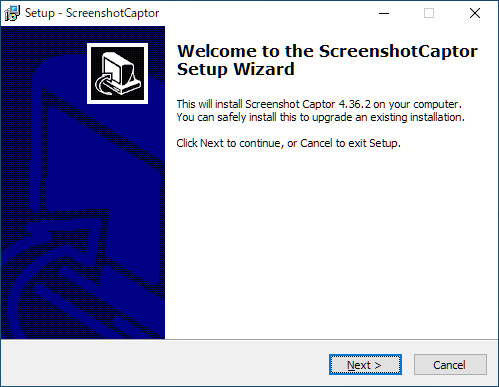
- インストーラを実行すると、セットアップウィザードが開始します。[Next]をクリックします。
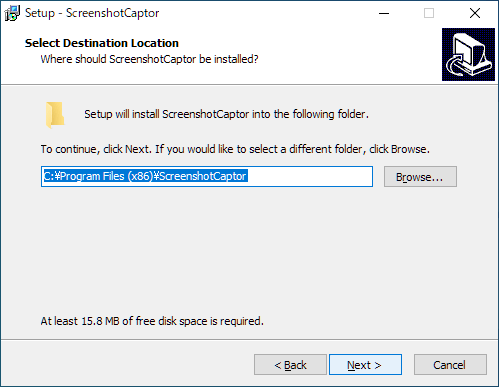
- インストール先の設定です。変更しない場合はこのまま[Next]をクリックします。
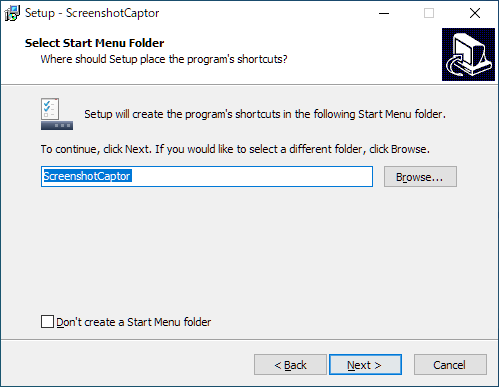
- スタートメニューに作成するショートカットの設定です。変更しない場合はこのまま[Next]をクリックします。
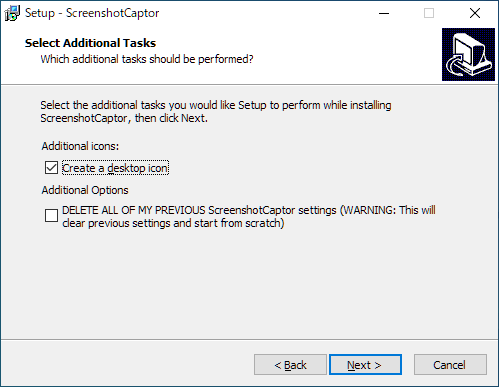
- 追加のタスクを設定して[Next]をクリックします。
- インストールの準備ができました。[Install]をクリックしてインストールを開始します。
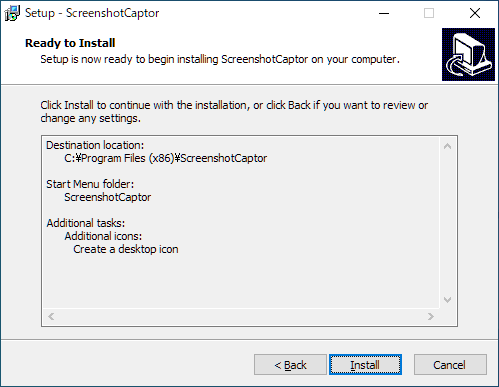
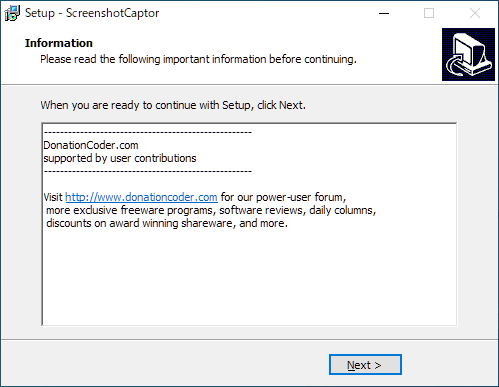
- ソフトウェアの情報が表示されます。[Next]をクリックします。
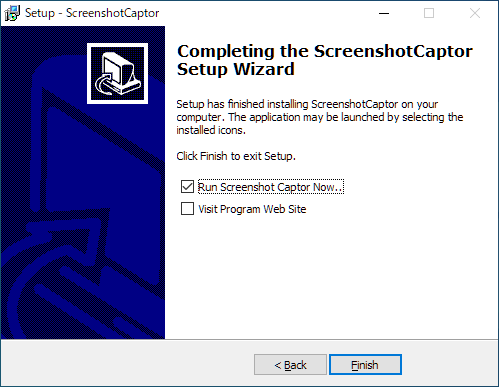
- インストールが完了しました。[Finish]をクリックしてセットアップウィザードを閉じます。
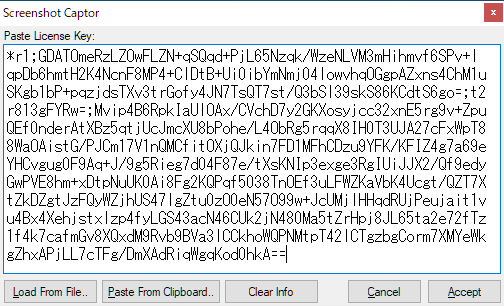
フリーライセンスキーを入手する
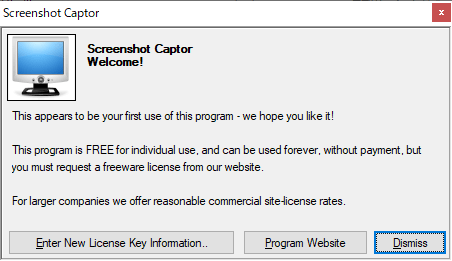
- 起動時にようこそ画面が表示されます。
- [Enter New License Key Information]ボタンをクリックします。

基本的な使い方
1. スクリーンショットを保存/編集する
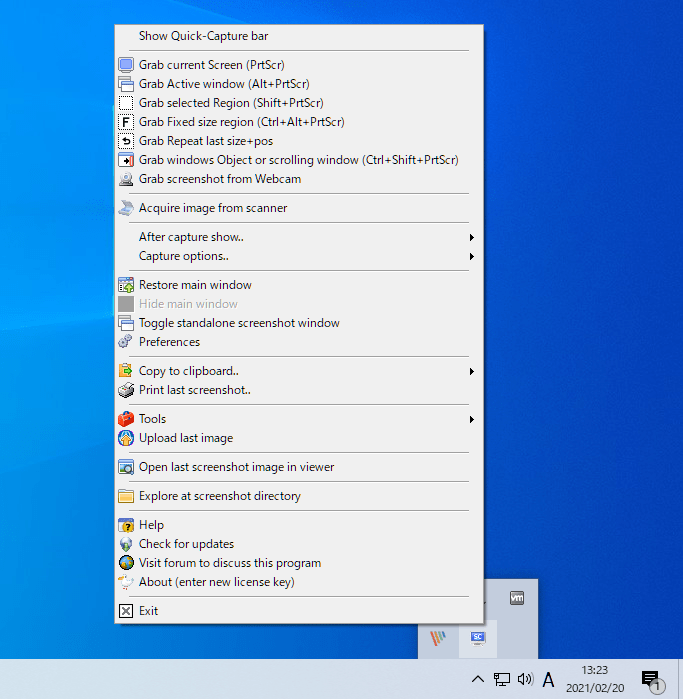
- Screenshot Captor を起動すると、タスクトレイにアイコンが表示されます。右クリックメニューからスクリーンショットやそのほかの機能、設定などを行うことができます。

・スクリーン全体(PrtScr)
・アクティブウィンドウ(Alt + PrtScr)
・選択した領域(Shift + PrtScr)
・固定領域(Ctrl + Alt + PrtScr)
・スクロールウィンドウ(Ctrl + Shift + PrtScr)
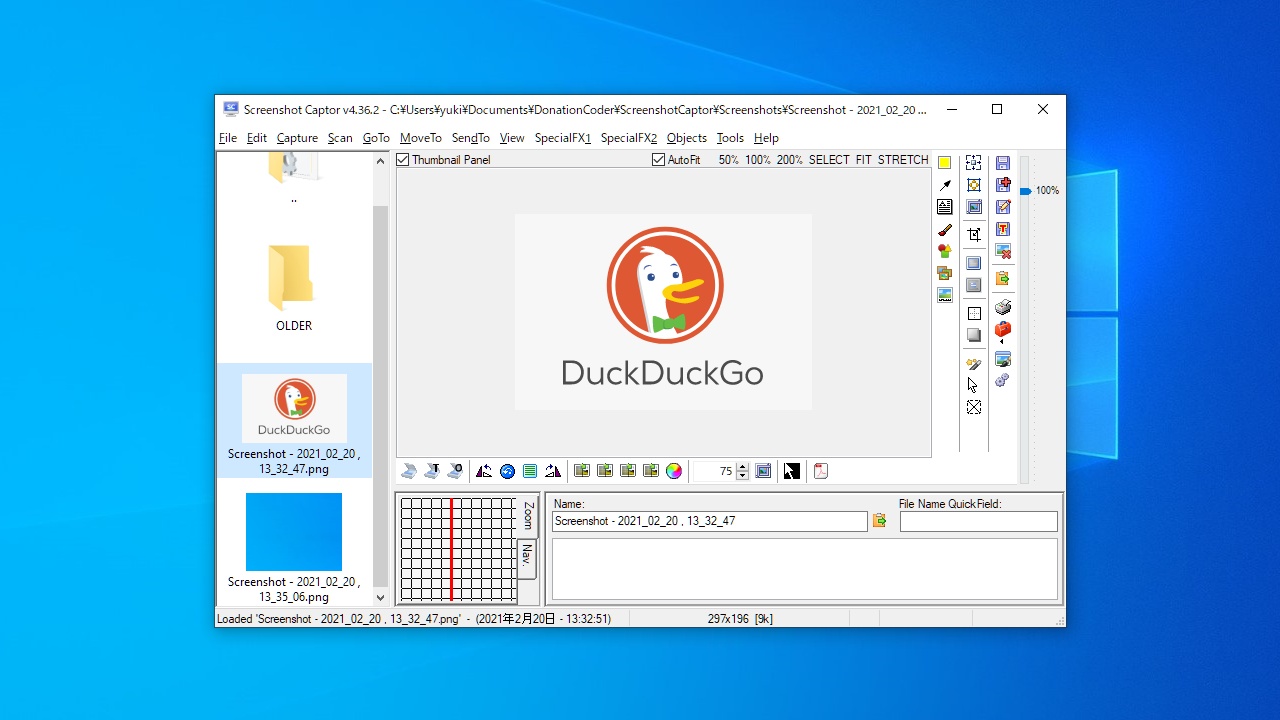
トレイアイコンをダブルクリックすると、エディタを開くことができます。
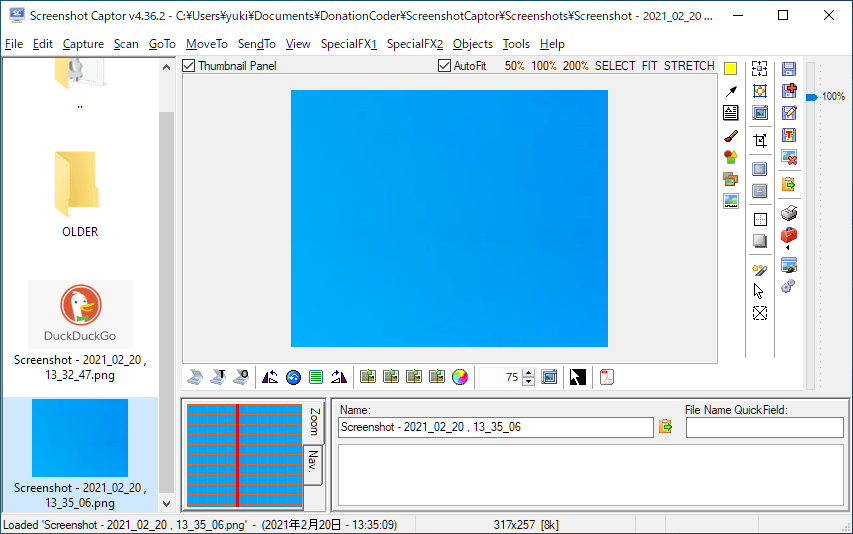
- エディタから保存されたスクリーンショット画像を開いて編集することができます。

よくある質問と回答
ライセンスについて。