").attr(n.scriptAttrs||{}).prop({charset:n.scriptCharset,src:n.url}).on("load error",i=function(e){r.remove(),i=null,e&&t("error"===e.type?404:200,e.type)}),C.head.appendChild(r[0])},abort:function(){i&&i()}}});var Jt,Kt=[],Zt=/(=)\?(?=&|$)|\?\?/;ce.ajaxSetup({jsonp:"callback",jsonpCallback:function(){var e=Kt.pop()||ce.expando+"_"+jt.guid++;return this[e]=!0,e}}),ce.ajaxPrefilter("json jsonp",function(e,t,n){var r,i,o,a=!1!==e.jsonp&&(Zt.test(e.url)?"url":"string"==typeof e.data&&0===(e.contentType||"").indexOf("application/x-www-form-urlencoded")&&Zt.test(e.data)&&"data");if(a||"jsonp"===e.dataTypes[0])return r=e.jsonpCallback=v(e.jsonpCallback)?e.jsonpCallback():e.jsonpCallback,a?e[a]=e[a].replace(Zt,"$1"+r):!1!==e.jsonp&&(e.url+=(At.test(e.url)?"&":"?")+e.jsonp+"="+r),e.converters["script json"]=function(){return o||ce.error(r+" was not called"),o[0]},e.dataTypes[0]="json",i=ie[r],ie[r]=function(){o=arguments},n.always(function(){void 0===i?ce(ie).removeProp(r):ie[r]=i,e[r]&&(e.jsonpCallback=t.jsonpCallback,Kt.push(r)),o&&v(i)&&i(o[0]),o=i=void 0}),"script"}),le.createHTMLDocument=((Jt=C.implementation.createHTMLDocument("").body).innerHTML="
",2===Jt.childNodes.length),ce.parseHTML=function(e,t,n){return"string"!=typeof e?[]:("boolean"==typeof t&&(n=t,t=!1),t||(le.createHTMLDocument?((r=(t=C.implementation.createHTMLDocument("")).createElement("base")).href=C.location.href,t.head.appendChild(r)):t=C),o=!n&&[],(i=w.exec(e))?[t.createElement(i[1])]:(i=Ae([e],t,o),o&&o.length&&ce(o).remove(),ce.merge([],i.childNodes)));var r,i,o},ce.fn.load=function(e,t,n){var r,i,o,a=this,s=e.indexOf(" ");return-1").append(ce.parseHTML(e)).find(r):e)}).always(n&&function(e,t){a.each(function(){n.apply(this,o||[e.responseText,t,e])})}),this},ce.expr.pseudos.animated=function(t){return ce.grep(ce.timers,function(e){return t===e.elem}).length},ce.offset={setOffset:function(e,t,n){var r,i,o,a,s,u,l=ce.css(e,"position"),c=ce(e),f={};"static"===l&&(e.style.position="relative"),s=c.offset(),o=ce.css(e,"top"),u=ce.css(e,"left"),("absolute"===l||"fixed"===l)&&-1<(o+u).indexOf("auto")?(a=(r=c.position()).top,i=r.left):(a=parseFloat(o)||0,i=parseFloat(u)||0),v(t)&&(t=t.call(e,n,ce.extend({},s))),null!=t.top&&(f.top=t.top-s.top+a),null!=t.left&&(f.left=t.left-s.left+i),"using"in t?t.using.call(e,f):c.css(f)}},ce.fn.extend({offset:function(t){if(arguments.length)return void 0===t?this:this.each(function(e){ce.offset.setOffset(this,t,e)});var e,n,r=this[0];return r?r.getClientRects().length?(e=r.getBoundingClientRect(),n=r.ownerDocument.defaultView,{top:e.top+n.pageYOffset,left:e.left+n.pageXOffset}):{top:0,left:0}:void 0},position:function(){if(this[0]){var e,t,n,r=this[0],i={top:0,left:0};if("fixed"===ce.css(r,"position"))t=r.getBoundingClientRect();else{t=this.offset(),n=r.ownerDocument,e=r.offsetParent||n.documentElement;while(e&&(e===n.body||e===n.documentElement)&&"static"===ce.css(e,"position"))e=e.parentNode;e&&e!==r&&1===e.nodeType&&((i=ce(e).offset()).top+=ce.css(e,"borderTopWidth",!0),i.left+=ce.css(e,"borderLeftWidth",!0))}return{top:t.top-i.top-ce.css(r,"marginTop",!0),left:t.left-i.left-ce.css(r,"marginLeft",!0)}}},offsetParent:function(){return this.map(function(){var e=this.offsetParent;while(e&&"static"===ce.css(e,"position"))e=e.offsetParent;return e||J})}}),ce.each({scrollLeft:"pageXOffset",scrollTop:"pageYOffset"},function(t,i){var o="pageYOffset"===i;ce.fn[t]=function(e){return M(this,function(e,t,n){var r;if(y(e)?r=e:9===e.nodeType&&(r=e.defaultView),void 0===n)return r?r[i]:e[t];r?r.scrollTo(o?r.pageXOffset:n,o?n:r.pageYOffset):e[t]=n},t,e,arguments.length)}}),ce.each(["top","left"],function(e,n){ce.cssHooks[n]=Ye(le.pixelPosition,function(e,t){if(t)return t=Ge(e,n),_e.test(t)?ce(e).position()[n]+"px":t})}),ce.each({Height:"height",Width:"width"},function(a,s){ce.each({padding:"inner"+a,content:s,"":"outer"+a},function(r,o){ce.fn[o]=function(e,t){var n=arguments.length&&(r||"boolean"!=typeof e),i=r||(!0===e||!0===t?"margin":"border");return M(this,function(e,t,n){var r;return y(e)?0===o.indexOf("outer")?e["inner"+a]:e.document.documentElement["client"+a]:9===e.nodeType?(r=e.documentElement,Math.max(e.body["scroll"+a],r["scroll"+a],e.body["offset"+a],r["offset"+a],r["client"+a])):void 0===n?ce.css(e,t,i):ce.style(e,t,n,i)},s,n?e:void 0,n)}})}),ce.each(["ajaxStart","ajaxStop","ajaxComplete","ajaxError","ajaxSuccess","ajaxSend"],function(e,t){ce.fn[t]=function(e){return this.on(t,e)}}),ce.fn.extend({bind:function(e,t,n){return this.on(e,null,t,n)},unbind:function(e,t){return this.off(e,null,t)},delegate:function(e,t,n,r){return this.on(t,e,n,r)},undelegate:function(e,t,n){return 1===arguments.length?this.off(e,"**"):this.off(t,e||"**",n)},hover:function(e,t){return this.on("mouseenter",e).on("mouseleave",t||e)}}),ce.each("blur focus focusin focusout resize scroll click dblclick mousedown mouseup mousemove mouseover mouseout mouseenter mouseleave change select submit keydown keypress keyup contextmenu".split(" "),function(e,n){ce.fn[n]=function(e,t){return 0
Office Image Extraction Wizard 4.1
オフィスそのほか
2021/04/20 11:39
説明機能仕様ダウンロード画像使い方
Office ドキュメントや電子書籍ファイル内の画像(写真)を抽出して保存
Office ドキュメントや電子書籍ファイル内の画像(写真)を抽出して保存する、無料のオープンソースソフトウェア。MS Office や OpenOffice の Word や PowerPoint、Drow ドキュメント、ePub などの電子書籍から画像を抽出できます。
Office Image Extraction Wizard の概要
Office Image Extraction Wizard は、多くの「オフィスタイプ」のドキュメントや電子書籍形式から画像を簡単に抽出し、それらを通常の画像ファイルとしてハードドライブに保存できるアプリです。45 種類以上の一般的なファイル形式がサポートされています。
Office Image Extraction Wizard の機能
Office Image Extraction Wizard の主な機能です。
| 機能 |
概要 |
| メイン機能 |
ドキュメント内の写真を抽出して保存する |
| 対応フォーマット |
Microsoft Office / OpenOffice / Libre Office / StarOffice / NeoOffice / Apple iWorks / 電子書籍(.epub, .fb2, .cbz)
※ 詳しくは「機能」のエリアを参照 |
Office や電子書籍ドキュメント内の画像を保存できます
Office Image Extraction Wizard は、さまざまな種類のドキュメントから画像を抽出し、画像ファイルとして保存できるソフトウェアです。
画像は元の形式で抽出され、画像処理や再圧縮は実行されないため、品質が失われることなく、高画質の画像を保存できます。ひとつのファイルまたは、バッチモードを使用して複数のファイルから画像を抽出できます。
使いやすい便利なアプリケーション
Office Image Extraction Wizard は、ウィザードを使用して誰でもかんたんにドキュメントの画像を保存できる使いやすいソフトウェアです。最近更新されていないので対応ファイル形式は古いものが表示されていますが、新しい Office ドキュメントや電子書籍形式でも問題なく動作します。
機能
Microsoft Office 97 / 2000 / XP / 2003:
- Word ( .doc | .dot )
- PowerPoint ( .ppt | .pot | .pps )
Microsoft Office 2007 / 2010 / 2012:
- Word ( .docx | .docm | .dotm | .dotx )
- PowerPoint
- pptx | .ppsm | .potm | .potx | .pptm | .ppsx | .sldm )
- Excel ( .xlsx | .xlsm | .xltm | .xltx )
OpenOffice / Libre Office / StarOffice:
- Writer ( .odt | .ott )
- Impress ( .odp | .otp )
- Calc ( .ods | .ots )
- Draw ( .odg | .otg )
NeoOffice / Old OpenDocument Format:
- Text ( .sxw | .stw )
- Presentation ( .sxi | .sti )
- Spreadsheet ( .sxc | .stc )
Apple iWorks:
- Pages ( .pages | .template )
- Numbers ( .numbers | .template )
そのほか:
- Microsoft XML Paper Specification ( .xps )
- Open XML Paper Specification ( .oxps )
- Microsoft Compiled HTML Help ( .chm )
- Electronic Publication Books ( .epub )
- Fictionbook ( .fb2 )
- Comic Book Archive ( .cbz )
- Autodesk AutoCAD DWFX ( .dwfx )
- Adobe Shockwave Flash ( .swf )
価格:無料
動作環境:Windows 7|8|8.1|10|11
使用言語:英語
最終更新日:
5年前 (2021/05/24)
ダウンロード数:970
画像

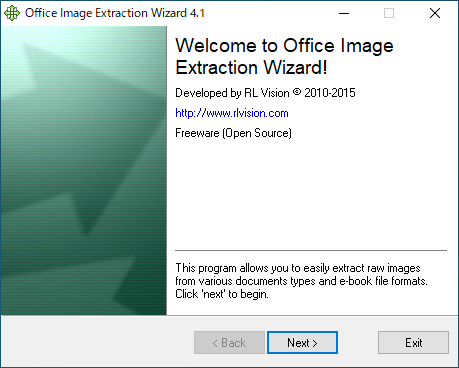
ウィザード

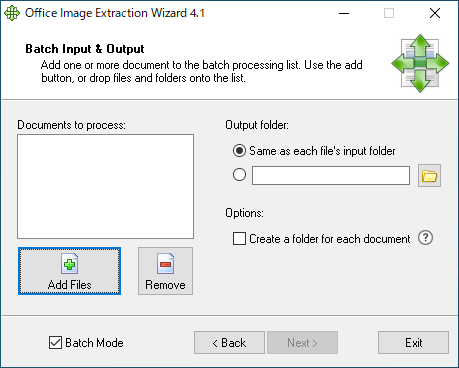
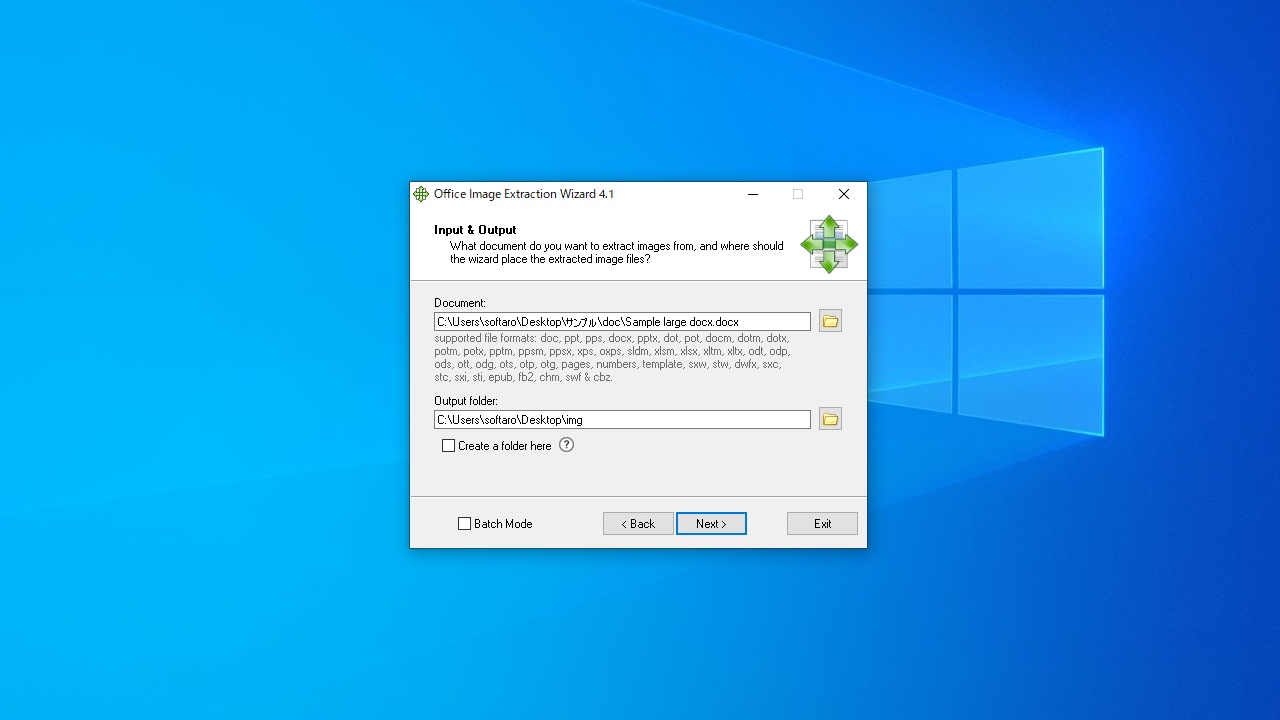
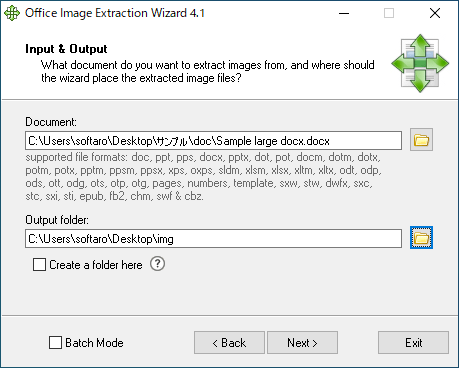
ファイルの入力/保存先の設定

バッチモード

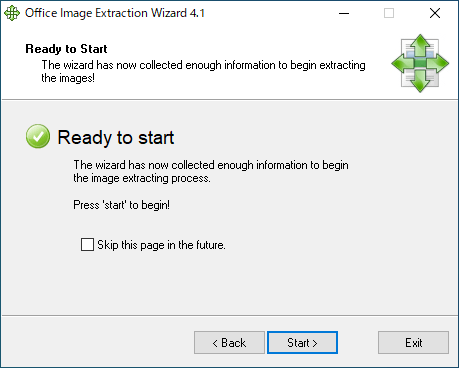
抽出の開始
使い方
インストール
1.インストール方法
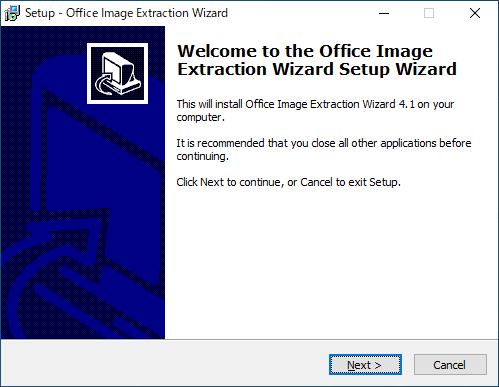
- インストーラを実行するとセットアップウィザードが開始します。[Next]をクリックします。
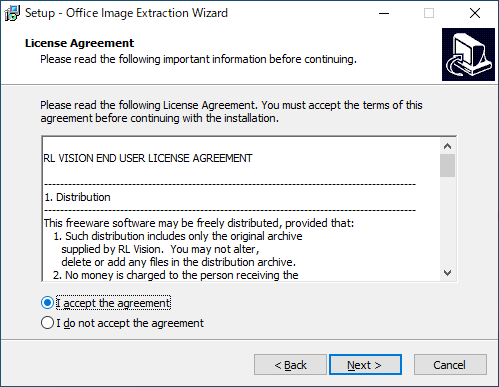
- ライセンスが表示されます。「I accept the agreement」を選択して[Next]をクリックします。
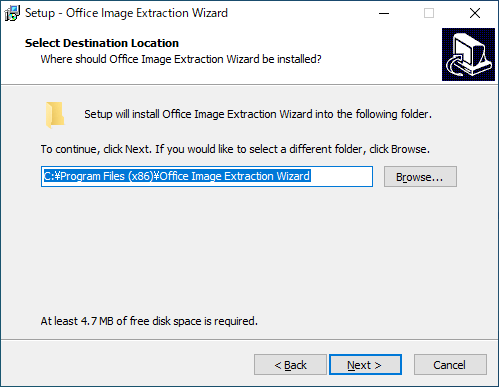
- インストール先を指定し、[Next]をクリックします。
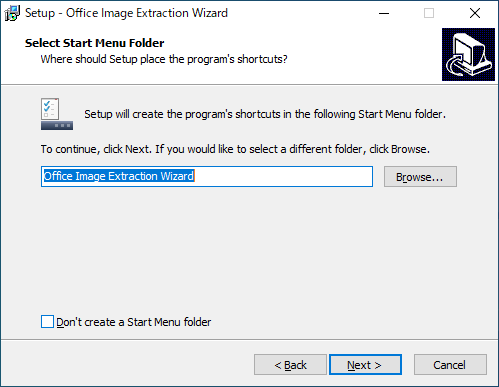
- スタートメニューに作成するショートカットの名前を指定し、[Next]をクリックします。
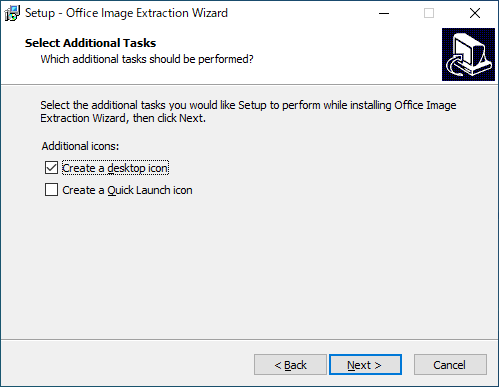
- 追加のタスクを選択して[Next]をクリックします。
- インストールの準備ができました。[Install]をクリックしてインストールを開始します。
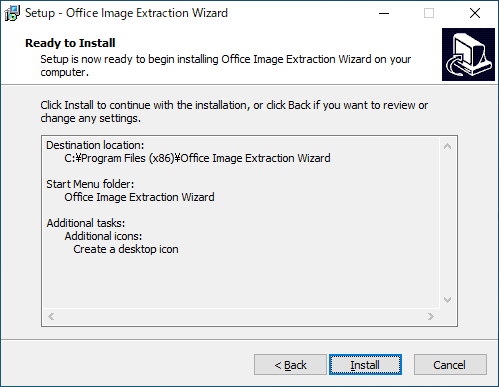
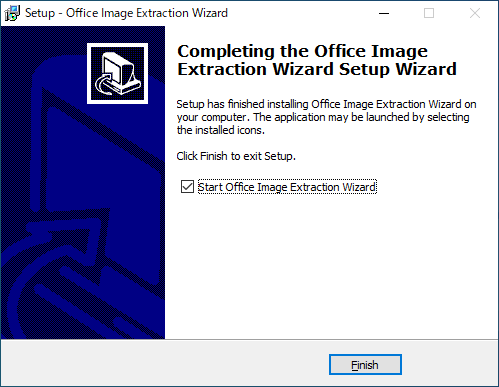
- インストールが完了しました。[Finish]をクリックしてセットアップウィザードを閉じます。
基本的な使い方
1.基本的な使い方
- Office Image Extraction Wizard を起動するとウィザードが開始します。[Next]をクリックします。

- 「Document」で抽出するファイルを選択します。
- 「Output folder」で保存先を選択します。フォルダを作成する場合は「Create a folder here」をチェックします。

・複数のファイルから抽出する場合は「Batch Mode」をチェックします。
- 準備ができました。[Start]をクリックして抽出を開始します。

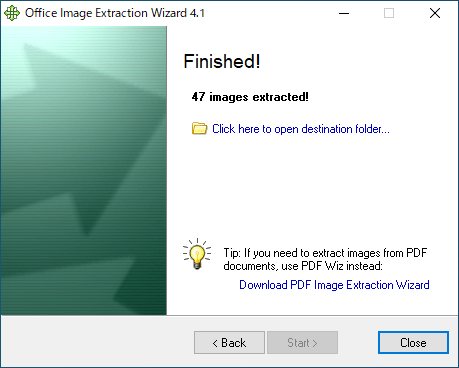
- 画像の抽出が完了しました。抽出した画像の数が表示され、リンクからフォルダを開くことができます。
よくある質問と回答
ライセンスについて。
Office Image Extraction Wizard は、どなたでも無料で利用できます。