").attr(n.scriptAttrs||{}).prop({charset:n.scriptCharset,src:n.url}).on("load error",i=function(e){r.remove(),i=null,e&&t("error"===e.type?404:200,e.type)}),C.head.appendChild(r[0])},abort:function(){i&&i()}}});var Jt,Kt=[],Zt=/(=)\?(?=&|$)|\?\?/;ce.ajaxSetup({jsonp:"callback",jsonpCallback:function(){var e=Kt.pop()||ce.expando+"_"+jt.guid++;return this[e]=!0,e}}),ce.ajaxPrefilter("json jsonp",function(e,t,n){var r,i,o,a=!1!==e.jsonp&&(Zt.test(e.url)?"url":"string"==typeof e.data&&0===(e.contentType||"").indexOf("application/x-www-form-urlencoded")&&Zt.test(e.data)&&"data");if(a||"jsonp"===e.dataTypes[0])return r=e.jsonpCallback=v(e.jsonpCallback)?e.jsonpCallback():e.jsonpCallback,a?e[a]=e[a].replace(Zt,"$1"+r):!1!==e.jsonp&&(e.url+=(At.test(e.url)?"&":"?")+e.jsonp+"="+r),e.converters["script json"]=function(){return o||ce.error(r+" was not called"),o[0]},e.dataTypes[0]="json",i=ie[r],ie[r]=function(){o=arguments},n.always(function(){void 0===i?ce(ie).removeProp(r):ie[r]=i,e[r]&&(e.jsonpCallback=t.jsonpCallback,Kt.push(r)),o&&v(i)&&i(o[0]),o=i=void 0}),"script"}),le.createHTMLDocument=((Jt=C.implementation.createHTMLDocument("").body).innerHTML="
",2===Jt.childNodes.length),ce.parseHTML=function(e,t,n){return"string"!=typeof e?[]:("boolean"==typeof t&&(n=t,t=!1),t||(le.createHTMLDocument?((r=(t=C.implementation.createHTMLDocument("")).createElement("base")).href=C.location.href,t.head.appendChild(r)):t=C),o=!n&&[],(i=w.exec(e))?[t.createElement(i[1])]:(i=Ae([e],t,o),o&&o.length&&ce(o).remove(),ce.merge([],i.childNodes)));var r,i,o},ce.fn.load=function(e,t,n){var r,i,o,a=this,s=e.indexOf(" ");return-1").append(ce.parseHTML(e)).find(r):e)}).always(n&&function(e,t){a.each(function(){n.apply(this,o||[e.responseText,t,e])})}),this},ce.expr.pseudos.animated=function(t){return ce.grep(ce.timers,function(e){return t===e.elem}).length},ce.offset={setOffset:function(e,t,n){var r,i,o,a,s,u,l=ce.css(e,"position"),c=ce(e),f={};"static"===l&&(e.style.position="relative"),s=c.offset(),o=ce.css(e,"top"),u=ce.css(e,"left"),("absolute"===l||"fixed"===l)&&-1<(o+u).indexOf("auto")?(a=(r=c.position()).top,i=r.left):(a=parseFloat(o)||0,i=parseFloat(u)||0),v(t)&&(t=t.call(e,n,ce.extend({},s))),null!=t.top&&(f.top=t.top-s.top+a),null!=t.left&&(f.left=t.left-s.left+i),"using"in t?t.using.call(e,f):c.css(f)}},ce.fn.extend({offset:function(t){if(arguments.length)return void 0===t?this:this.each(function(e){ce.offset.setOffset(this,t,e)});var e,n,r=this[0];return r?r.getClientRects().length?(e=r.getBoundingClientRect(),n=r.ownerDocument.defaultView,{top:e.top+n.pageYOffset,left:e.left+n.pageXOffset}):{top:0,left:0}:void 0},position:function(){if(this[0]){var e,t,n,r=this[0],i={top:0,left:0};if("fixed"===ce.css(r,"position"))t=r.getBoundingClientRect();else{t=this.offset(),n=r.ownerDocument,e=r.offsetParent||n.documentElement;while(e&&(e===n.body||e===n.documentElement)&&"static"===ce.css(e,"position"))e=e.parentNode;e&&e!==r&&1===e.nodeType&&((i=ce(e).offset()).top+=ce.css(e,"borderTopWidth",!0),i.left+=ce.css(e,"borderLeftWidth",!0))}return{top:t.top-i.top-ce.css(r,"marginTop",!0),left:t.left-i.left-ce.css(r,"marginLeft",!0)}}},offsetParent:function(){return this.map(function(){var e=this.offsetParent;while(e&&"static"===ce.css(e,"position"))e=e.offsetParent;return e||J})}}),ce.each({scrollLeft:"pageXOffset",scrollTop:"pageYOffset"},function(t,i){var o="pageYOffset"===i;ce.fn[t]=function(e){return M(this,function(e,t,n){var r;if(y(e)?r=e:9===e.nodeType&&(r=e.defaultView),void 0===n)return r?r[i]:e[t];r?r.scrollTo(o?r.pageXOffset:n,o?n:r.pageYOffset):e[t]=n},t,e,arguments.length)}}),ce.each(["top","left"],function(e,n){ce.cssHooks[n]=Ye(le.pixelPosition,function(e,t){if(t)return t=Ge(e,n),_e.test(t)?ce(e).position()[n]+"px":t})}),ce.each({Height:"height",Width:"width"},function(a,s){ce.each({padding:"inner"+a,content:s,"":"outer"+a},function(r,o){ce.fn[o]=function(e,t){var n=arguments.length&&(r||"boolean"!=typeof e),i=r||(!0===e||!0===t?"margin":"border");return M(this,function(e,t,n){var r;return y(e)?0===o.indexOf("outer")?e["inner"+a]:e.document.documentElement["client"+a]:9===e.nodeType?(r=e.documentElement,Math.max(e.body["scroll"+a],r["scroll"+a],e.body["offset"+a],r["offset"+a],r["client"+a])):void 0===n?ce.css(e,t,i):ce.style(e,t,n,i)},s,n?e:void 0,n)}})}),ce.each(["ajaxStart","ajaxStop","ajaxComplete","ajaxError","ajaxSuccess","ajaxSend"],function(e,t){ce.fn[t]=function(e){return this.on(t,e)}}),ce.fn.extend({bind:function(e,t,n){return this.on(e,null,t,n)},unbind:function(e,t){return this.off(e,null,t)},delegate:function(e,t,n,r){return this.on(t,e,n,r)},undelegate:function(e,t,n){return 1===arguments.length?this.off(e,"**"):this.off(t,e||"**",n)},hover:function(e,t){return this.on("mouseenter",e).on("mouseleave",t||e)}}),ce.each("blur focus focusin focusout resize scroll click dblclick mousedown mouseup mousemove mouseover mouseout mouseenter mouseleave change select submit keydown keypress keyup contextmenu".split(" "),function(e,n){ce.fn[n]=function(e,t){return 0
FileExplorerGallery 1.1.0
画像ビューア
2021/06/23 14:04
説明機能仕様ダウンロード画像使い方
ホットキーを使用して、フォルダ内の画像をすばやく表示できる画像ビューア

フォルダ内の画像をすばやく表示できる Windows 向けの画像ビューア。フォルダを開いてショートカットキーを押すだけでフォルダ内の画像を表示でき、画像の回転やズームイン/ズームアウト、画像のスライドショー表示などができます。

FileExplorerGallery の概要
FileExplorerGallery を使用すると、現在開いているフォルダ内のすべての画像をすばやく表示できます。
FileExplorerGallery の機能
FileExplorerGallery の主な機能です。
| 機能 |
概要 |
| メイン機能 |
画像ビューア |
| 機能詳細 |
・ショートカットキーでフォルダ内の画像を表示
・ズームイン/ズームアウト
・画像の回転
・画像のスライドショー |
フォルダ内の画像をすばやく表示できます
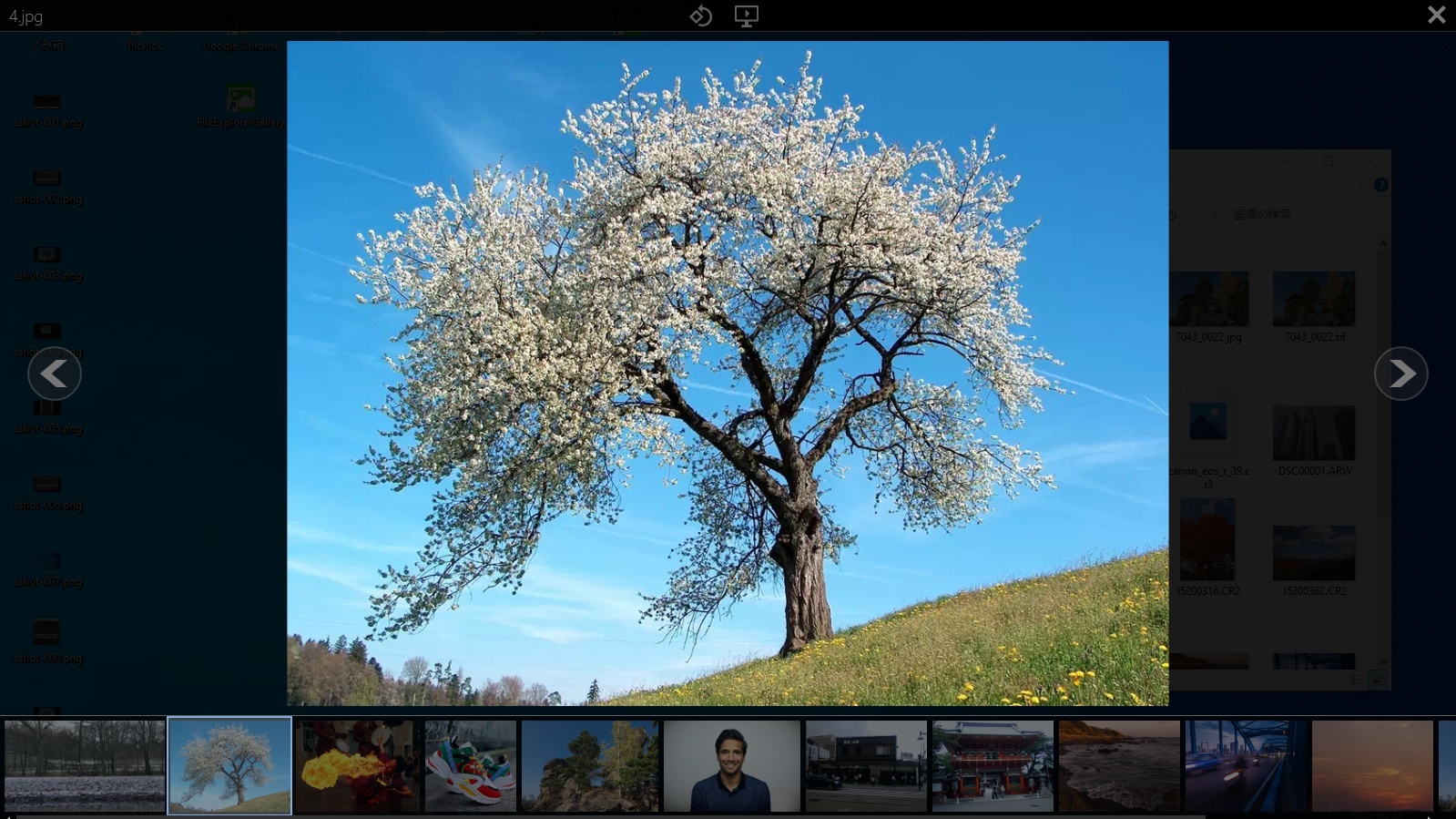
FileExplorerGallery は、Windows エクスプローラを使用しながらすばやく画像を表示することができるアプリケーションです。
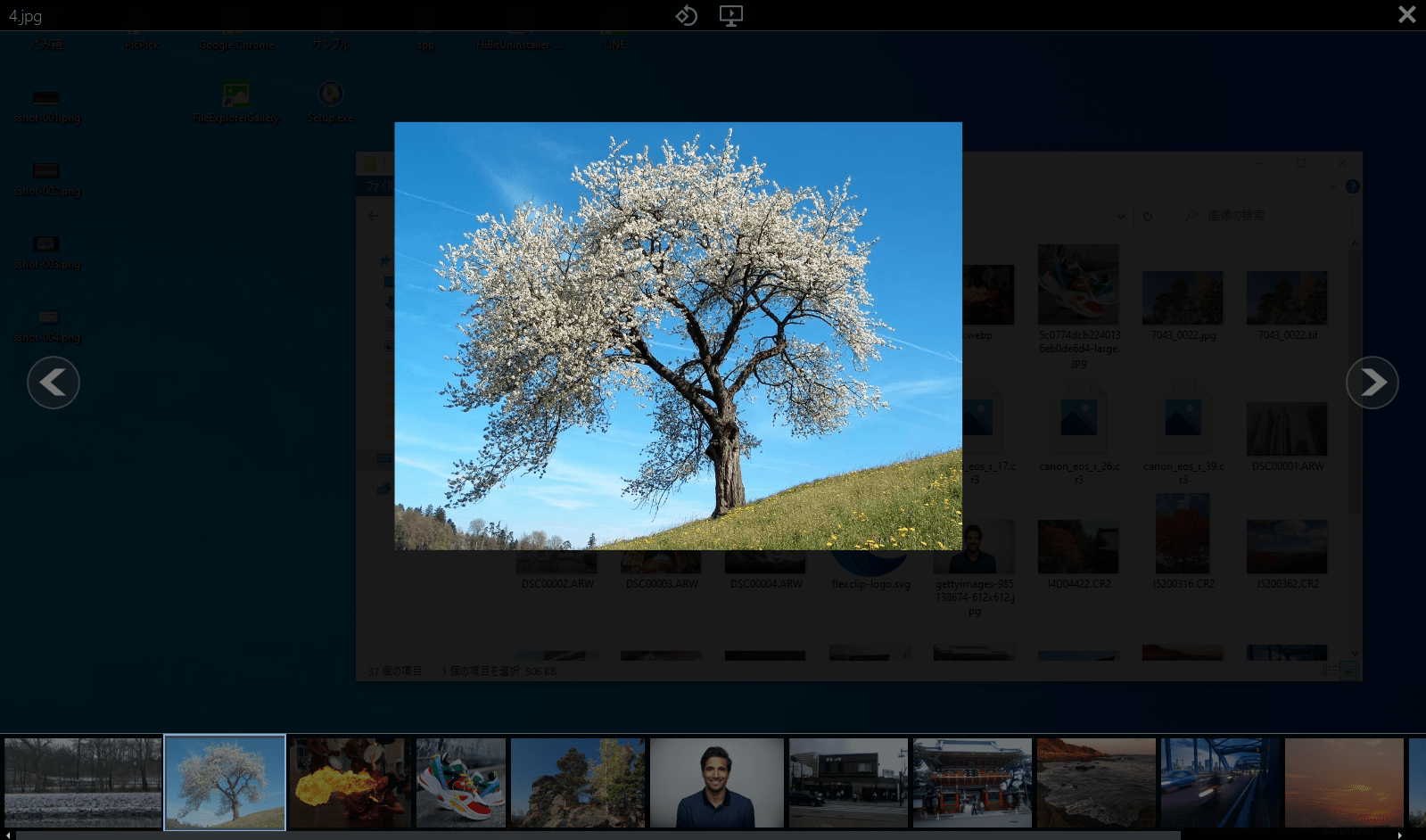
画像ファイルのフォルダを開いて、ショートカットキー(デフォルトでは F12 キー)を押すとフォルダ内のすべての画像を表示できます。画像はフルスクリーンで表示され、ズームイン/ズームアウト(拡大/縮小)して表示することが可能です。
画像のスライドショーを実行できます
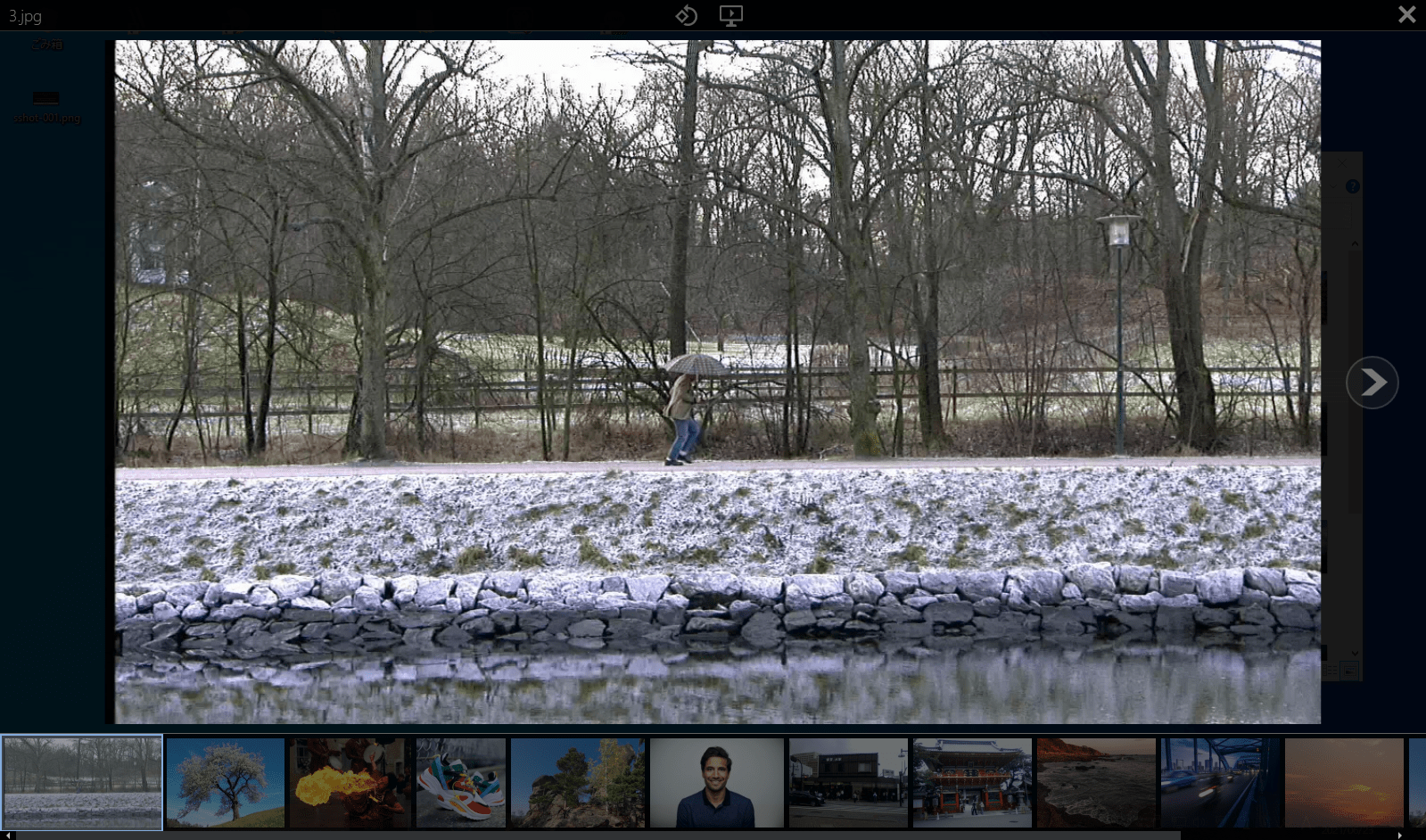
FileExplorerGallery では、画像を回転して表示したり、画像のスライドショーを実行することもできます。
スライドショーで画像を表示する時間(間隔)は設定から変更可能で、設定ではそのほかに、Windows 起動時に FileExplorerGallery を実行するように設定したり、ビューアを開くデフォルトのショートカットキーを変更したりできます。
かんたんに画像を閲覧できる画像ビューア
FileExplorerGallery は、フォルダ内の画像をかんたんな操作ですばやく表示したい場合に便利なアプリケーションです。このアプリケーションではフォルダ内の一番最初のファイルが表示されます。画像を選択して表示することはできないので少し使いづらい面があります。
機能
- ショートカットキーでフォルダ内の画像を表示
- ズームイン/ズームアウト
- 回転
- スライドショー
- 自動更新
価格:無料
動作環境:Windows 7|8|8.1|10|11
使用言語:英語
最終更新日:
4年前 (2022/01/10)
ダウンロード数:441
画像

メイン画面

ズームイン/ズームアウト表示

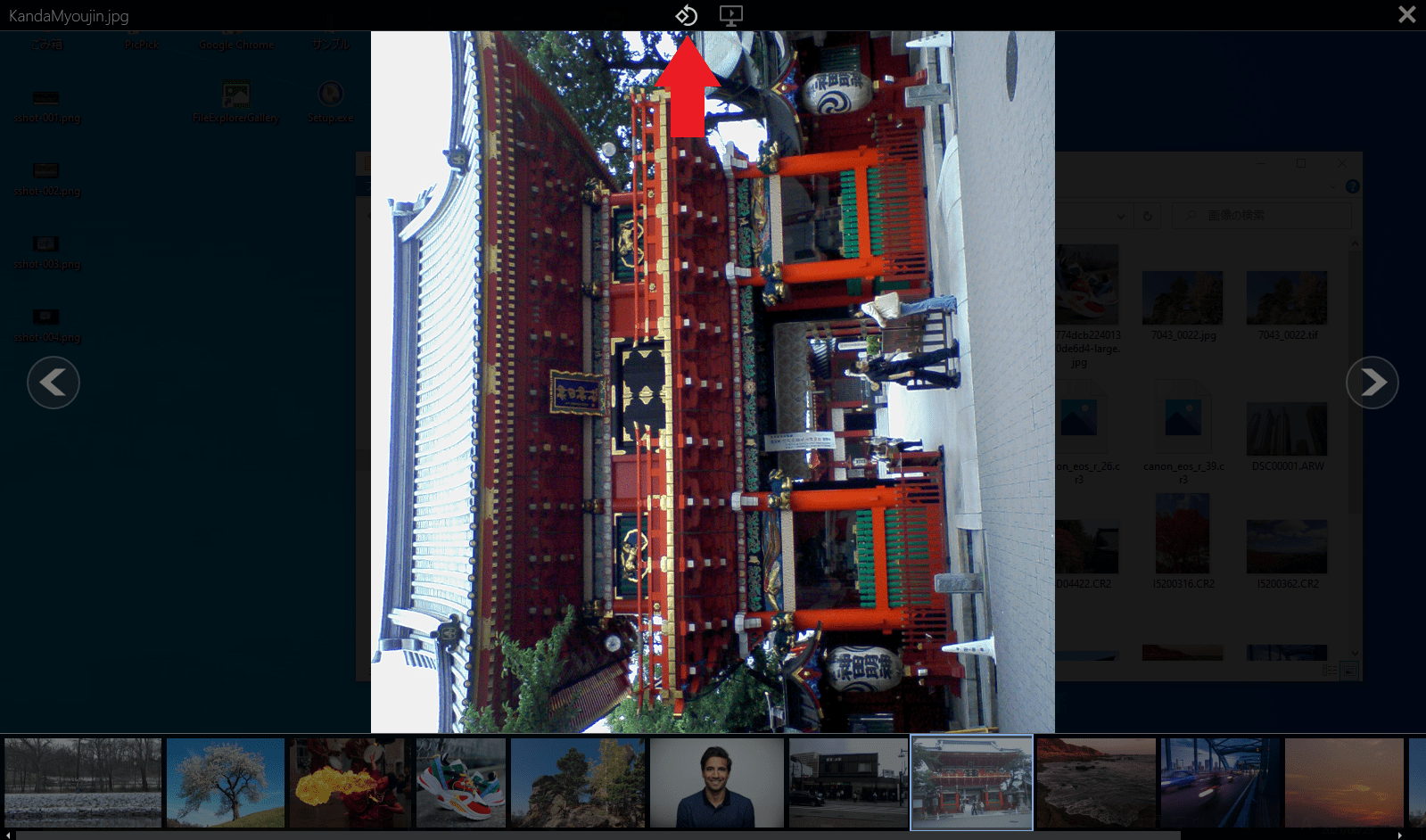
画像の回転

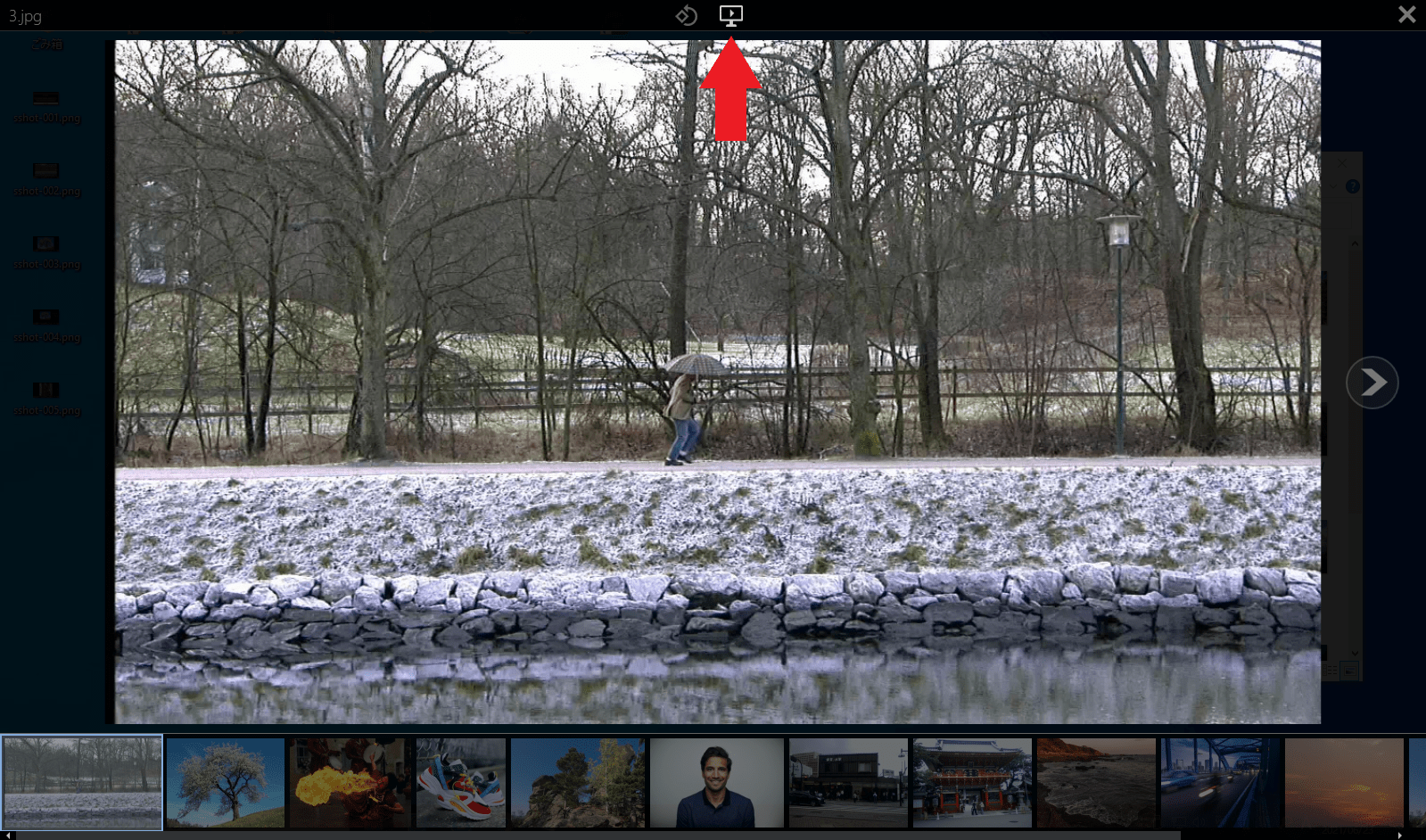
スライドショー

トレイアイコン
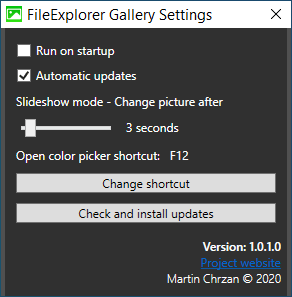
設定画面
使い方
インストール
1.インストール方法
ダウンロードした EXE ファイルを実行するだけで、インストールは完了します。
- インストールが完了すると下のウィンドウが表示されます。[Let’s go!]をクリックして使用を開始します。

基本的な使い方
1.画像を表示する
- Windows エクスプローラで画像ファイルのフォルダを開いて、「F12」キーを押すとフォルダ内の画像が表示されます。

- キーボードまたはマウスを使用して、表示する画像を移動できます。
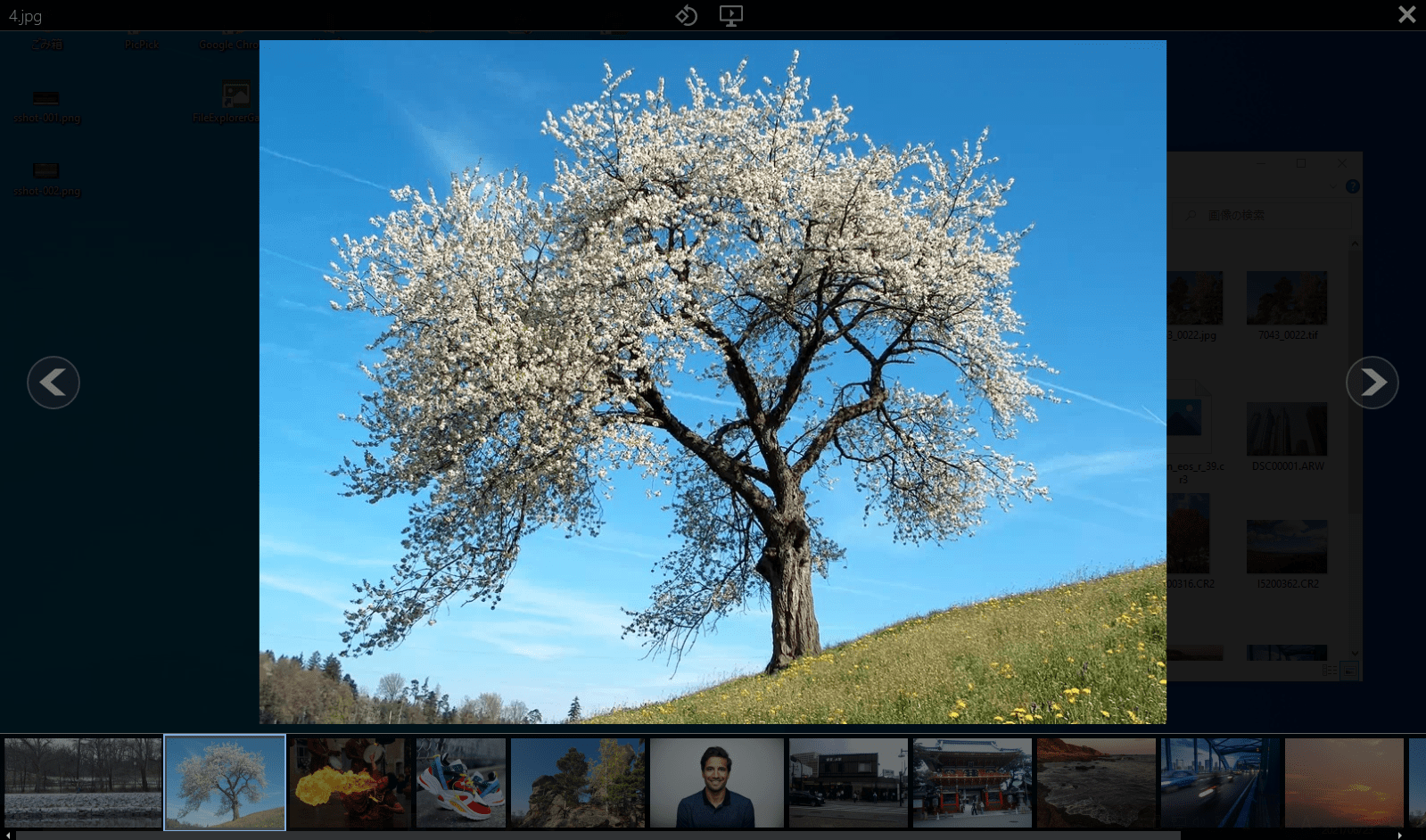
2.ズーム
- 画像をダブルクリックするか、マウススクロールを使用してズームイン/ズームアウトができます。リセットするには、マウスの右ボタンを押します。

3.回転

4.スライドショー
- 上部のスライドショーアイコンをクリックすると、スライドショーを実行します。スライドショーの設定はトレイアイコンの右クリックメニューから設定できます。

5.トレイアイコン
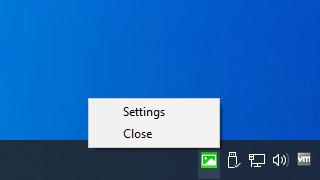
- FileExplorerGallery を実行すると、タスクトレイにアイコンが表示されます。

6.設定(Settings)
- トレイアイコンの右クリックメニューの「Settings」を選択すると、設定画面が開きます。

・Run on startup:Windows 起動時に起動する
・Automatic updates:自動的に更新する
・Slideshow mode – Change picture after:スライドショーで画像を表示する時間
・Open color picker shortcut:FileExplorerGallery を開くショートカット
・Change shortcut:FileExplorerGallery を開くショートカットを変更する
・Check and install updates:更新をチェックしてインストールする
よくある質問と回答
ライセンスについて。
FileExplorerGallery は、どなたでも無料で使用できます。