").attr(n.scriptAttrs||{}).prop({charset:n.scriptCharset,src:n.url}).on("load error",i=function(e){r.remove(),i=null,e&&t("error"===e.type?404:200,e.type)}),C.head.appendChild(r[0])},abort:function(){i&&i()}}});var Jt,Kt=[],Zt=/(=)\?(?=&|$)|\?\?/;ce.ajaxSetup({jsonp:"callback",jsonpCallback:function(){var e=Kt.pop()||ce.expando+"_"+jt.guid++;return this[e]=!0,e}}),ce.ajaxPrefilter("json jsonp",function(e,t,n){var r,i,o,a=!1!==e.jsonp&&(Zt.test(e.url)?"url":"string"==typeof e.data&&0===(e.contentType||"").indexOf("application/x-www-form-urlencoded")&&Zt.test(e.data)&&"data");if(a||"jsonp"===e.dataTypes[0])return r=e.jsonpCallback=v(e.jsonpCallback)?e.jsonpCallback():e.jsonpCallback,a?e[a]=e[a].replace(Zt,"$1"+r):!1!==e.jsonp&&(e.url+=(At.test(e.url)?"&":"?")+e.jsonp+"="+r),e.converters["script json"]=function(){return o||ce.error(r+" was not called"),o[0]},e.dataTypes[0]="json",i=ie[r],ie[r]=function(){o=arguments},n.always(function(){void 0===i?ce(ie).removeProp(r):ie[r]=i,e[r]&&(e.jsonpCallback=t.jsonpCallback,Kt.push(r)),o&&v(i)&&i(o[0]),o=i=void 0}),"script"}),le.createHTMLDocument=((Jt=C.implementation.createHTMLDocument("").body).innerHTML="
",2===Jt.childNodes.length),ce.parseHTML=function(e,t,n){return"string"!=typeof e?[]:("boolean"==typeof t&&(n=t,t=!1),t||(le.createHTMLDocument?((r=(t=C.implementation.createHTMLDocument("")).createElement("base")).href=C.location.href,t.head.appendChild(r)):t=C),o=!n&&[],(i=w.exec(e))?[t.createElement(i[1])]:(i=Ae([e],t,o),o&&o.length&&ce(o).remove(),ce.merge([],i.childNodes)));var r,i,o},ce.fn.load=function(e,t,n){var r,i,o,a=this,s=e.indexOf(" ");return-1").append(ce.parseHTML(e)).find(r):e)}).always(n&&function(e,t){a.each(function(){n.apply(this,o||[e.responseText,t,e])})}),this},ce.expr.pseudos.animated=function(t){return ce.grep(ce.timers,function(e){return t===e.elem}).length},ce.offset={setOffset:function(e,t,n){var r,i,o,a,s,u,l=ce.css(e,"position"),c=ce(e),f={};"static"===l&&(e.style.position="relative"),s=c.offset(),o=ce.css(e,"top"),u=ce.css(e,"left"),("absolute"===l||"fixed"===l)&&-1<(o+u).indexOf("auto")?(a=(r=c.position()).top,i=r.left):(a=parseFloat(o)||0,i=parseFloat(u)||0),v(t)&&(t=t.call(e,n,ce.extend({},s))),null!=t.top&&(f.top=t.top-s.top+a),null!=t.left&&(f.left=t.left-s.left+i),"using"in t?t.using.call(e,f):c.css(f)}},ce.fn.extend({offset:function(t){if(arguments.length)return void 0===t?this:this.each(function(e){ce.offset.setOffset(this,t,e)});var e,n,r=this[0];return r?r.getClientRects().length?(e=r.getBoundingClientRect(),n=r.ownerDocument.defaultView,{top:e.top+n.pageYOffset,left:e.left+n.pageXOffset}):{top:0,left:0}:void 0},position:function(){if(this[0]){var e,t,n,r=this[0],i={top:0,left:0};if("fixed"===ce.css(r,"position"))t=r.getBoundingClientRect();else{t=this.offset(),n=r.ownerDocument,e=r.offsetParent||n.documentElement;while(e&&(e===n.body||e===n.documentElement)&&"static"===ce.css(e,"position"))e=e.parentNode;e&&e!==r&&1===e.nodeType&&((i=ce(e).offset()).top+=ce.css(e,"borderTopWidth",!0),i.left+=ce.css(e,"borderLeftWidth",!0))}return{top:t.top-i.top-ce.css(r,"marginTop",!0),left:t.left-i.left-ce.css(r,"marginLeft",!0)}}},offsetParent:function(){return this.map(function(){var e=this.offsetParent;while(e&&"static"===ce.css(e,"position"))e=e.offsetParent;return e||J})}}),ce.each({scrollLeft:"pageXOffset",scrollTop:"pageYOffset"},function(t,i){var o="pageYOffset"===i;ce.fn[t]=function(e){return M(this,function(e,t,n){var r;if(y(e)?r=e:9===e.nodeType&&(r=e.defaultView),void 0===n)return r?r[i]:e[t];r?r.scrollTo(o?r.pageXOffset:n,o?n:r.pageYOffset):e[t]=n},t,e,arguments.length)}}),ce.each(["top","left"],function(e,n){ce.cssHooks[n]=Ye(le.pixelPosition,function(e,t){if(t)return t=Ge(e,n),_e.test(t)?ce(e).position()[n]+"px":t})}),ce.each({Height:"height",Width:"width"},function(a,s){ce.each({padding:"inner"+a,content:s,"":"outer"+a},function(r,o){ce.fn[o]=function(e,t){var n=arguments.length&&(r||"boolean"!=typeof e),i=r||(!0===e||!0===t?"margin":"border");return M(this,function(e,t,n){var r;return y(e)?0===o.indexOf("outer")?e["inner"+a]:e.document.documentElement["client"+a]:9===e.nodeType?(r=e.documentElement,Math.max(e.body["scroll"+a],r["scroll"+a],e.body["offset"+a],r["offset"+a],r["client"+a])):void 0===n?ce.css(e,t,i):ce.style(e,t,n,i)},s,n?e:void 0,n)}})}),ce.each(["ajaxStart","ajaxStop","ajaxComplete","ajaxError","ajaxSuccess","ajaxSend"],function(e,t){ce.fn[t]=function(e){return this.on(t,e)}}),ce.fn.extend({bind:function(e,t,n){return this.on(e,null,t,n)},unbind:function(e,t){return this.off(e,null,t)},delegate:function(e,t,n,r){return this.on(t,e,n,r)},undelegate:function(e,t,n){return 1===arguments.length?this.off(e,"**"):this.off(t,e||"**",n)},hover:function(e,t){return this.on("mouseenter",e).on("mouseleave",t||e)}}),ce.each("blur focus focusin focusout resize scroll click dblclick mousedown mouseup mousemove mouseover mouseout mouseenter mouseleave change select submit keydown keypress keyup contextmenu".split(" "),function(e,n){ce.fn[n]=function(e,t){return 0
AwesomeWallpaper 1.5.2
デスクトップ
2020/11/06 20:35
説明機能仕様ダウンロード画像使い方
デスクトップの壁紙にシステム情報や画像、ビデオ、Web ページなどを表示できるアプリ
Windows のデスクトップの壁紙の上にシステム情報を表示したり、好みの画像や画像のスライドショーを表示したり、ビデオや Web ページを常に表示することができるアプリケーション。
AwesomeWallpaper の概要
AwesomeWallpaper は、デスクトップの壁紙上に画像やシステム情報、ビデオや Web ページを表示することができるアプリケーションです。
AwesomeWallpaper の機能
AwesomeWallpaper の主な機能です。
| 機能 |
概要 |
| System Information |
デスクトップにシステム情報を表示 |
| Image |
デスクトップに指定した画像を表示 |
| Gallery |
デスクトップにフォルダ内の複数の画像をスライドショー表示 |
| Video |
デスクトップ上にビデオを再生する |
| Web |
デスクトップに Web ページを表示 |
システム情報や画像、ビデオ、Web ページをデスクトップに表示
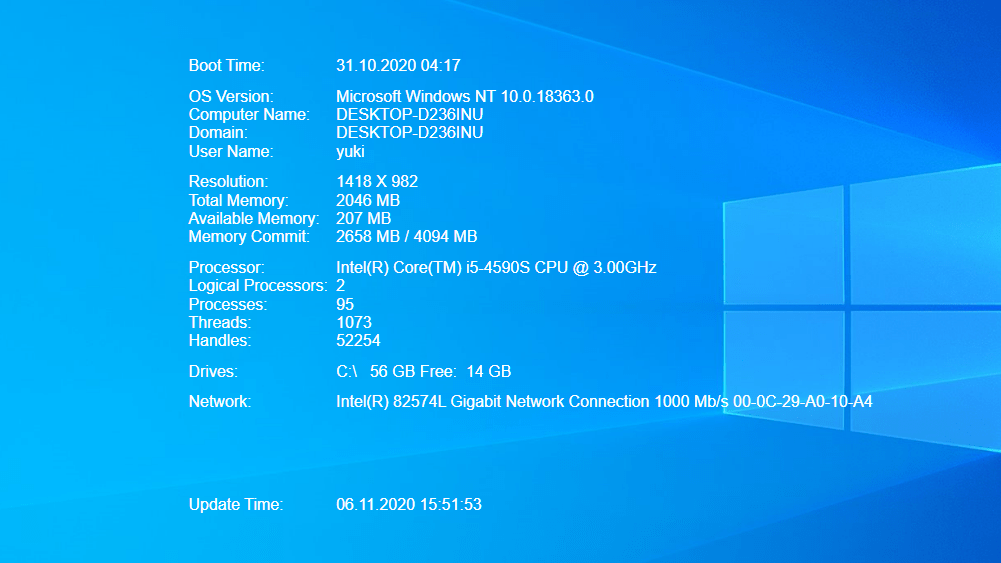
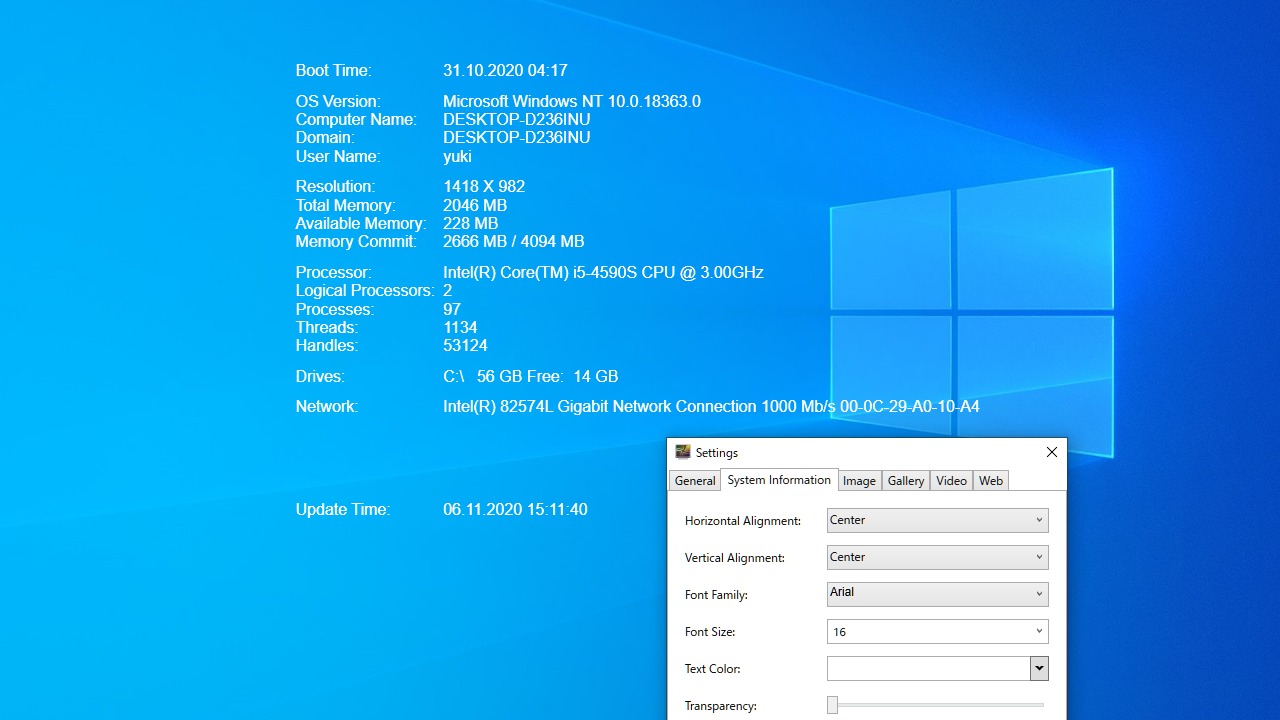
AwesomeWallpaper を使用すると、デスクトップの壁紙にシステムの概要情報を表示したり、好みの画像や画像のギャラリー、またはビデオや Web ページを表示することができます。
画像やビデオ、システム情報などの表示位置は設定で変更可能で、フォントや透明度などはカスタマイズすることができます。なお、表示可能なアイテムは一種類だけです。
デスクトップに個性を加えるユニークなユーティリティ
AwesomeWallpaper は、単純なデスクトップの壁紙の情報量を増やして個性を加えることができるユニークなユーティリティです。AwesomeWallpaper は、ポータブルアプリケーションなのでインストール不要で使用できます。
機能
- デスクトップに画像を表示します。
- デスクトップに複数の画像をスライドショー表示します。
- デスクトップでビデオを再生します。
- デスクトップに埋め込みモードで Web ページを表示できます。
- デスクトップにシステム情報を表示します。
価格:無料
動作環境:Windows 7|8|8.1|10
使用言語:英語
最終更新日:
5年前 (2021/03/01)
ダウンロード数:1147
画像

トレイアイコン

設定画面
使い方
インストール方法
1.アプリを起動する
AwesomeWallpaper はインストール不要で使用できます。
- ダウンロードした ZIP ファイルを解凍し、「AwesomeWallpaper.exe」ファイルを実行するとアプリケーションを起動できます。
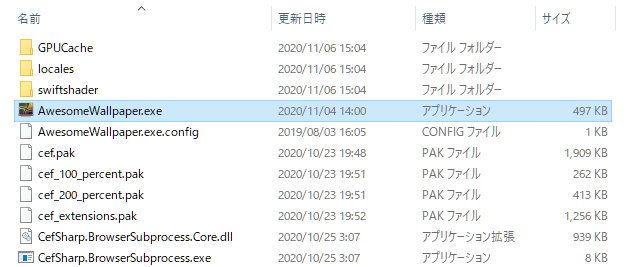
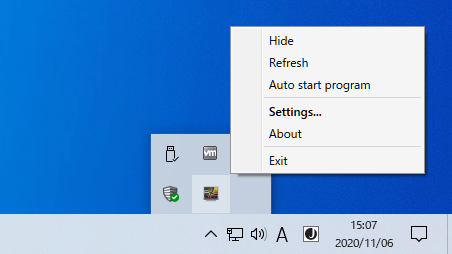
2.トレイアイコン
AwesomeWallpaper を起動するとトレイアイコンに表示されます。
- 右クリックの「Settings」から設定を行うことができます。

・Hide:非表示にする
・Refresh:再読み込みして表示する
・Auto Start Programs:Windows 起動時に AwesomeWallpaper を起動する
・Settings:設定画面を開く
・About:バージョン情報を表示
・Exit:AwesomeWallpaper を終了する
設定
1.General
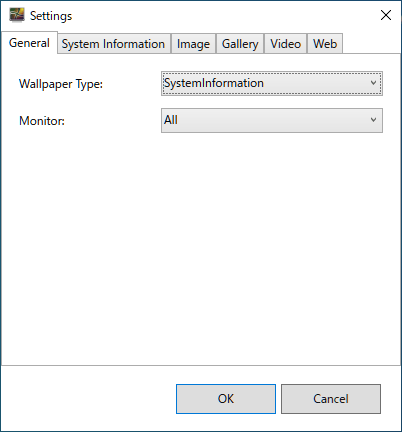
・Wakkpaper Type:表示するタイプを選択する
・Monitor:表示するモニターを選択する
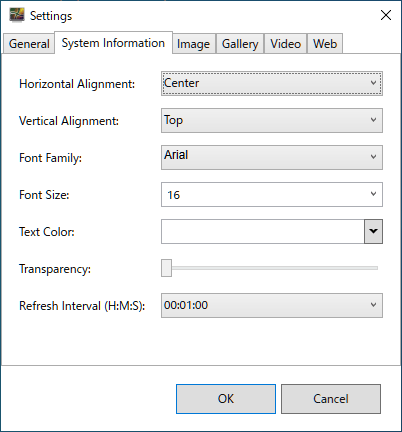
2.System Information
- 「System Information」では、システムインフォメーションを表示する場合の設定ができます。

・Horizontal Alignment:水平方向の配置位置
・Vertical Alignment:垂直方向の配置位置
・Font Family:フォントの種類
・Font Size:フォントサイズ
・Text Color:テキスト色
・Transparency:透明度
・Refresh Interval:リフレッシュする間隔
3.Image
- 「Image」では、画像を表示する場合の設定ができます。
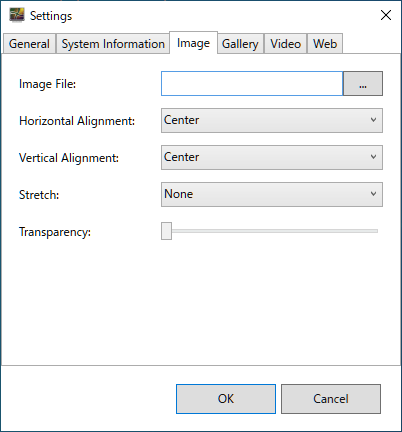
・Image File:表示する画像ファイルを選択
・Horizontal Alignment:水平方向の配置位置
・Vertical Alignment:垂直方向の配置位置
・Stretch:画像のストレッチの有無またはストレッチ方法
・Transparency:透明度
4.Gallery
- 「Gallery」では、画像のギャラリーを表示する場合の設定ができます。
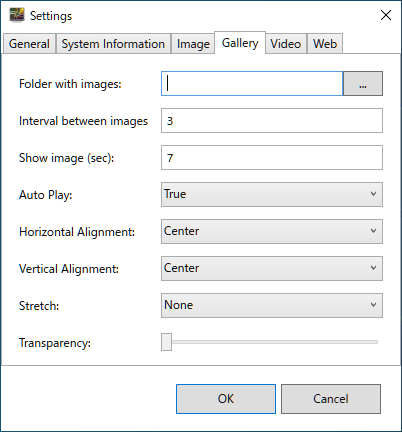
・Folder with images:表示する画像フォルダを選択
・Interval between images:画像を表示する間の間隔
・Show image:画像を表示する時間(秒)
・Auto Play:自動再生の有無
・Horizontal Alignment:水平方向の配置位置
・Vertical Alignment:垂直方向の配置位置
・Stretch:画像のストレッチの有無またはストレッチ方法
・Transparency:透明度
5.Video
- 「Video」では、ビデオを表示する場合の設定ができます。
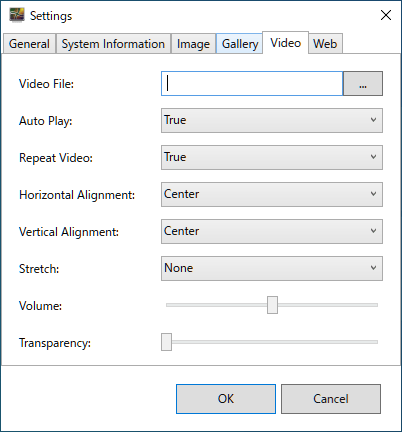
・Video File:表示するビデオファイルを選択
・Auto Play:自動再生の有無
・Repeat Video:リピート再生の有無
・Horizontal Alignment:水平方向の配置位置
・Vertical Alignment:垂直方向の配置位置
・Stretch:画像のストレッチの有無またはストレッチ方法
・Volume:音量
・Transparency:透明度
6.Web
- 「Web」では、Web ページを表示する場合の設定ができます。
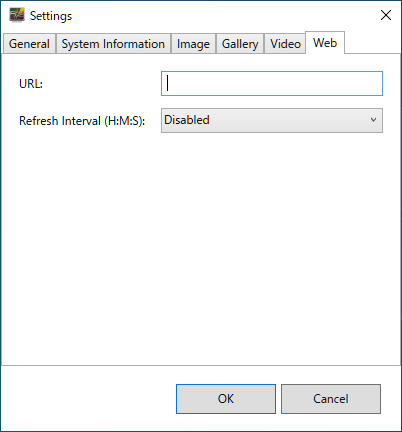
・URL:表示する URL
・Refresh Interval:リフレッシュ(再読み込み)する間隔
よくある質問と回答
ライセンスについて。