").attr(n.scriptAttrs||{}).prop({charset:n.scriptCharset,src:n.url}).on("load error",i=function(e){r.remove(),i=null,e&&t("error"===e.type?404:200,e.type)}),C.head.appendChild(r[0])},abort:function(){i&&i()}}});var Jt,Kt=[],Zt=/(=)\?(?=&|$)|\?\?/;ce.ajaxSetup({jsonp:"callback",jsonpCallback:function(){var e=Kt.pop()||ce.expando+"_"+jt.guid++;return this[e]=!0,e}}),ce.ajaxPrefilter("json jsonp",function(e,t,n){var r,i,o,a=!1!==e.jsonp&&(Zt.test(e.url)?"url":"string"==typeof e.data&&0===(e.contentType||"").indexOf("application/x-www-form-urlencoded")&&Zt.test(e.data)&&"data");if(a||"jsonp"===e.dataTypes[0])return r=e.jsonpCallback=v(e.jsonpCallback)?e.jsonpCallback():e.jsonpCallback,a?e[a]=e[a].replace(Zt,"$1"+r):!1!==e.jsonp&&(e.url+=(At.test(e.url)?"&":"?")+e.jsonp+"="+r),e.converters["script json"]=function(){return o||ce.error(r+" was not called"),o[0]},e.dataTypes[0]="json",i=ie[r],ie[r]=function(){o=arguments},n.always(function(){void 0===i?ce(ie).removeProp(r):ie[r]=i,e[r]&&(e.jsonpCallback=t.jsonpCallback,Kt.push(r)),o&&v(i)&&i(o[0]),o=i=void 0}),"script"}),le.createHTMLDocument=((Jt=C.implementation.createHTMLDocument("").body).innerHTML="
",2===Jt.childNodes.length),ce.parseHTML=function(e,t,n){return"string"!=typeof e?[]:("boolean"==typeof t&&(n=t,t=!1),t||(le.createHTMLDocument?((r=(t=C.implementation.createHTMLDocument("")).createElement("base")).href=C.location.href,t.head.appendChild(r)):t=C),o=!n&&[],(i=w.exec(e))?[t.createElement(i[1])]:(i=Ae([e],t,o),o&&o.length&&ce(o).remove(),ce.merge([],i.childNodes)));var r,i,o},ce.fn.load=function(e,t,n){var r,i,o,a=this,s=e.indexOf(" ");return-1").append(ce.parseHTML(e)).find(r):e)}).always(n&&function(e,t){a.each(function(){n.apply(this,o||[e.responseText,t,e])})}),this},ce.expr.pseudos.animated=function(t){return ce.grep(ce.timers,function(e){return t===e.elem}).length},ce.offset={setOffset:function(e,t,n){var r,i,o,a,s,u,l=ce.css(e,"position"),c=ce(e),f={};"static"===l&&(e.style.position="relative"),s=c.offset(),o=ce.css(e,"top"),u=ce.css(e,"left"),("absolute"===l||"fixed"===l)&&-1<(o+u).indexOf("auto")?(a=(r=c.position()).top,i=r.left):(a=parseFloat(o)||0,i=parseFloat(u)||0),v(t)&&(t=t.call(e,n,ce.extend({},s))),null!=t.top&&(f.top=t.top-s.top+a),null!=t.left&&(f.left=t.left-s.left+i),"using"in t?t.using.call(e,f):c.css(f)}},ce.fn.extend({offset:function(t){if(arguments.length)return void 0===t?this:this.each(function(e){ce.offset.setOffset(this,t,e)});var e,n,r=this[0];return r?r.getClientRects().length?(e=r.getBoundingClientRect(),n=r.ownerDocument.defaultView,{top:e.top+n.pageYOffset,left:e.left+n.pageXOffset}):{top:0,left:0}:void 0},position:function(){if(this[0]){var e,t,n,r=this[0],i={top:0,left:0};if("fixed"===ce.css(r,"position"))t=r.getBoundingClientRect();else{t=this.offset(),n=r.ownerDocument,e=r.offsetParent||n.documentElement;while(e&&(e===n.body||e===n.documentElement)&&"static"===ce.css(e,"position"))e=e.parentNode;e&&e!==r&&1===e.nodeType&&((i=ce(e).offset()).top+=ce.css(e,"borderTopWidth",!0),i.left+=ce.css(e,"borderLeftWidth",!0))}return{top:t.top-i.top-ce.css(r,"marginTop",!0),left:t.left-i.left-ce.css(r,"marginLeft",!0)}}},offsetParent:function(){return this.map(function(){var e=this.offsetParent;while(e&&"static"===ce.css(e,"position"))e=e.offsetParent;return e||J})}}),ce.each({scrollLeft:"pageXOffset",scrollTop:"pageYOffset"},function(t,i){var o="pageYOffset"===i;ce.fn[t]=function(e){return M(this,function(e,t,n){var r;if(y(e)?r=e:9===e.nodeType&&(r=e.defaultView),void 0===n)return r?r[i]:e[t];r?r.scrollTo(o?r.pageXOffset:n,o?n:r.pageYOffset):e[t]=n},t,e,arguments.length)}}),ce.each(["top","left"],function(e,n){ce.cssHooks[n]=Ye(le.pixelPosition,function(e,t){if(t)return t=Ge(e,n),_e.test(t)?ce(e).position()[n]+"px":t})}),ce.each({Height:"height",Width:"width"},function(a,s){ce.each({padding:"inner"+a,content:s,"":"outer"+a},function(r,o){ce.fn[o]=function(e,t){var n=arguments.length&&(r||"boolean"!=typeof e),i=r||(!0===e||!0===t?"margin":"border");return M(this,function(e,t,n){var r;return y(e)?0===o.indexOf("outer")?e["inner"+a]:e.document.documentElement["client"+a]:9===e.nodeType?(r=e.documentElement,Math.max(e.body["scroll"+a],r["scroll"+a],e.body["offset"+a],r["offset"+a],r["client"+a])):void 0===n?ce.css(e,t,i):ce.style(e,t,n,i)},s,n?e:void 0,n)}})}),ce.each(["ajaxStart","ajaxStop","ajaxComplete","ajaxError","ajaxSuccess","ajaxSend"],function(e,t){ce.fn[t]=function(e){return this.on(t,e)}}),ce.fn.extend({bind:function(e,t,n){return this.on(e,null,t,n)},unbind:function(e,t){return this.off(e,null,t)},delegate:function(e,t,n,r){return this.on(t,e,n,r)},undelegate:function(e,t,n){return 1===arguments.length?this.off(e,"**"):this.off(t,e||"**",n)},hover:function(e,t){return this.on("mouseenter",e).on("mouseleave",t||e)}}),ce.each("blur focus focusin focusout resize scroll click dblclick mousedown mouseup mousemove mouseover mouseout mouseenter mouseleave change select submit keydown keypress keyup contextmenu".split(" "),function(e,n){ce.fn[n]=function(e,t){return 0
Exif Pilot 6.27.3 / 6.29.0 Beta
画像そのほか
2020/11/27 11:51
説明機能仕様ダウンロード画像使い方
EXIF / IPTC / XMP 情報を表示して編集することができるソフトウェア
デジタル写真ファイルの EXIF / IPTC / XMP 情報を編集したり、データを消去することができる EXIF 情報編集ツール。EXIF 情報の追加や編集、GPS などの不要なデータの削除、データのエクスポート/インポートなどを行うことができます。
Exif Pilot の概要
Exif Pilot は、EXIF、EXIF GPS、IPTC、XMP データをすばやく表示し、編集することができるアプリケーションです。新しいタグの追加、一部の Makernote タグの編集、キーワードの追加、編集、および削除を行うことができます。
Exif Pilot の機能
Exif Pilot の特徴の一覧です。
| 機能 |
概要 |
| メイン機能 |
・EXIF / IPTC / XMP 情報の表示・編集・作成・クリア・インポート・エクスポート |
| 対応フォーマット |
・JPEG, TIFF, PNG, DNG, NEF, PEF, CR2, CRW, JP2, ORF, SRW, ARW, SR2, PSD
・MRW, RW2, PGF, EPS, RAF(読み取りのみ) |
| そのほかの機能 |
・EXIF / IPTC / XMP 情報を XML / エクセル / CSV にエクスポートする
・XML / エクセル / CSV から EXIF / IPTC 情報をインポートする |
写真の EXIF 情報を確認して編集できます
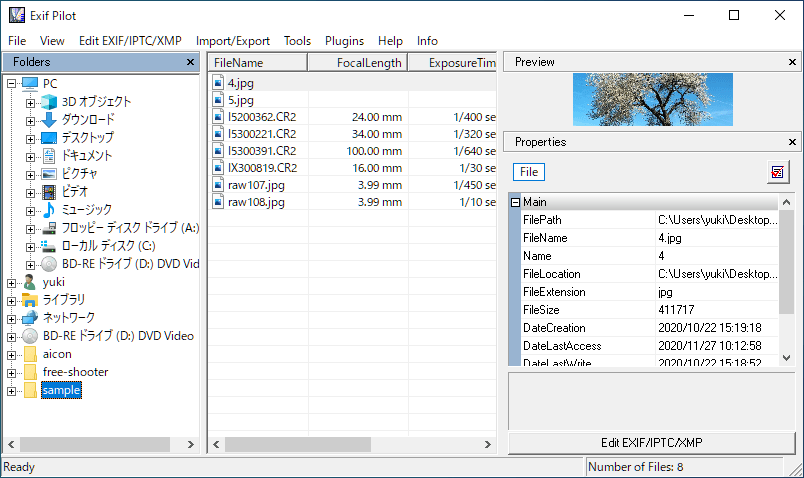
Exif Pilot は、デジタル写真に含まれている EXIF / IPTC / XMP 情報を表示して編集することができるソフトウェアです。
カメラのモデル、アーティスト、著作権、元の日付、デジタル化された日時、GPS 情報 などを編集したり、必要のない情報を削除したり、新しいタグを追加したり、すべての EXIF / IPTC / XMP 情報をクリーンアップすることができます。
使いやすい EXIF 情報編集ツール
Exif Pilot は、写真の EXIF 情報を表示して調べたり、タグ情報を編集したり、不要なデータを消去したい場合に役に立つツールです。GPS 情報やカメラモデルなどの個人情報が特定できる情報を削除したい場合に便利です。
機能
- EXIF、EXIF GPS、IPTC、XMP データを表示します
- EXIF、EXIF GPS、IPTC、XMP データを編集、作成します
- EXIF、IPTC タグを削除し、すべてのメタデータをクリーンアップします
- 新しいタグを追加します
- Makernote タグを編集します。
- キーワードを追加、編集、削除します
- EXIF / IPTC を XML ファイルとしてインポート/エクスポートします
- EXIF / IPTC を MSExcel ファイルとしてインポート/エクスポートします
- EXIF / IPTC を CSV 形式のテキストファイルとしてインポート/エクスポートします
- エクスポートするタグを選択します
- パノラマ画像の PhotoSphere メタデータを編集、作成します
- データを含むフィールドの説明を表示します
価格:無料
動作環境:Windows Vista|7|8|8.1|10|11
使用言語:英語
最終更新日:
4か月前 (2025/12/25)
ダウンロード数:4457
ダウンロード
exif.exe
stable (32 bit)
4.60 MB
4457 ダウンロード
使い方
インストール
1.インストールする
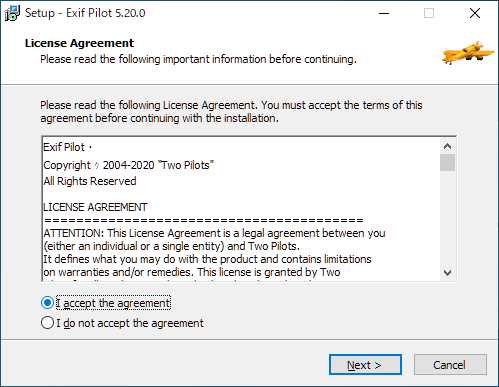
- インストーラを実行すると使用許諾契約書が表示されます。「I accept the agreement」を選択して[Next]をクリックします。
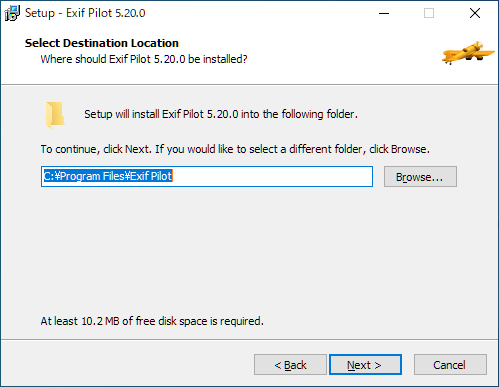
- インストール先の設定画面です。変更しない場合はこのまま[Next]をクリックします。
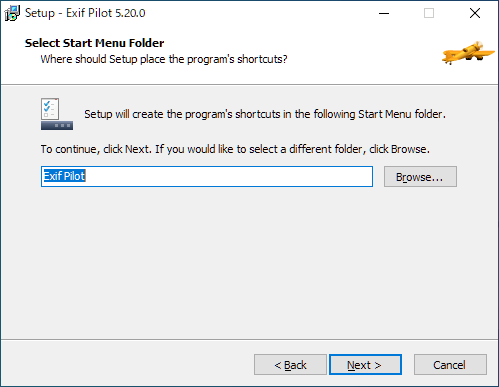
- スタートメニューに作成するショートカットの設定です。変更しない場合はこのまま[Next]をクリックします。
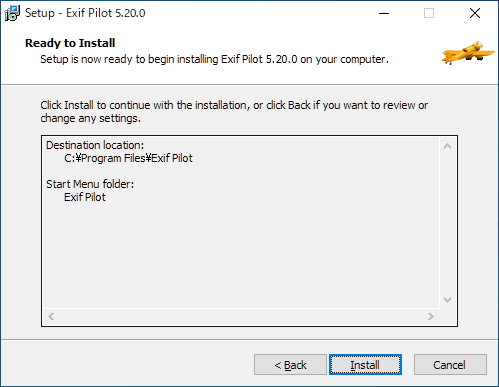
- インストールの準備ができました。[Install]をクリックしてインストールを開始します。
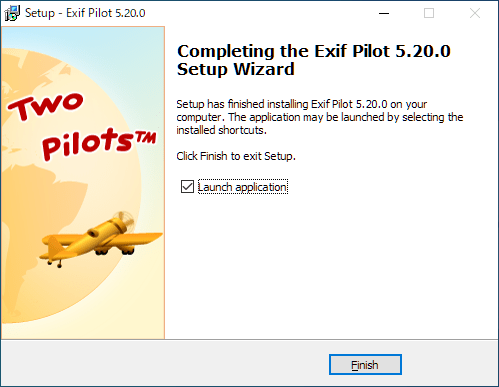
- インストールが完了しました。[Finish]をクリックしてセットアップウィザードを閉じます。
EXIF 情報を編集する
1.EXIF 情報を編集する
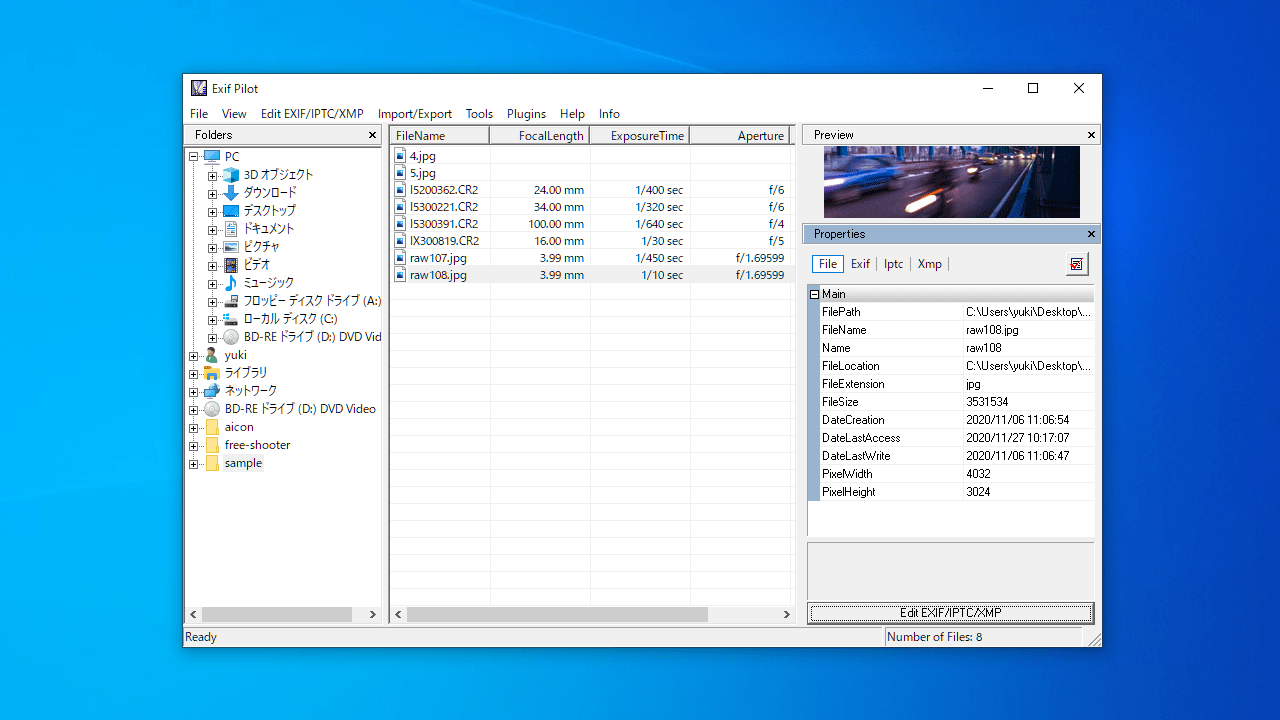
- 左側のフォルダツリーから画像があるフォルダを選択します。
- フォルダを選択すると画像ファイルが中央にリスト表示されます。
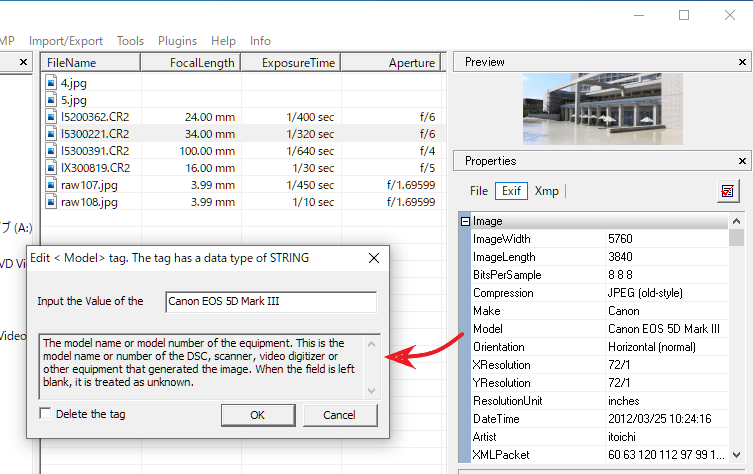
- 画像を選択してダブルクリックするか、右下の[Edit EXIF/IPTC/XMP]ボタンをクリックすると、EXIF 情報の編集を開始できます。

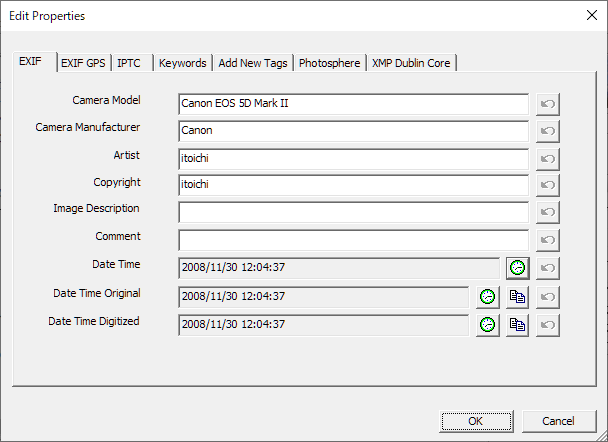
EXIF 情報の編集画面です。
- 編集して[OK]をクリックするとファイルに EXIF 情報が保存されます。
- 「Add New Tags」をクリックすると、新しいタグを追加できます。

- 右側のペインのテーブルをクリックして EXIF 情報を編集することもできます。
メニュー
1.View
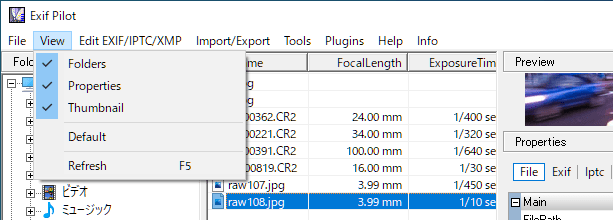
・Folders:左側のフォルダツリーの表示/非表示を切り替えます
・Properties:右側のプロパティの表示/非表示を切り替えます
・Thumbnail:サムネイルの表示/非表示を切り替えます
2.Edit EXIF/IPTC/XMP
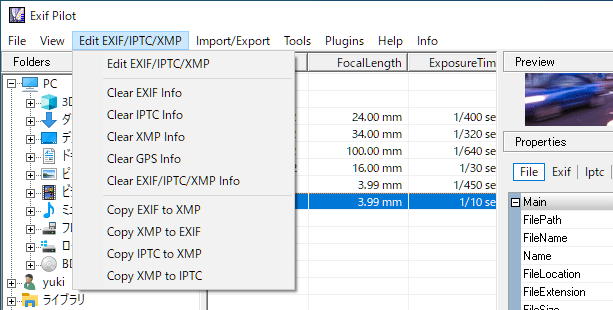
・Edit EXIF/IPTC/XMP:EXIF/IPTC/XMP データを編集します
・Clear EXIF Info:EXIF 情報を消去します
・Clear IPTC Info:IPTC 情報を消去します
・Clear XMP Info:XMP 情報を消去します
・Clear GPS Info:GPS 情報を消去します
・Clear EXIF/IPTC/XMP Info:EXIF/IPTC/XMP 情報を消去します
・Copy EXIF to XMP:EXIF を XMP にコピーします
・Copy XMP to EXIF:XMP を EXIF にコピーします
・Copy IPTC to XMP:IPTC を XMP にコピーします
・Copy XMP to IPTC:XMP を IPTC にコピーします
3.Import/Export
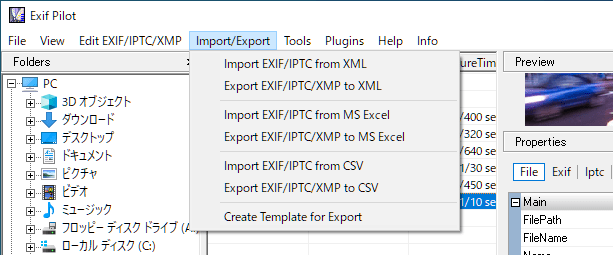
・Import EXIF/IPTC from XML:XML から EXIF / IPTC 情報をインポートする
・Export EXIF/IPTC/XMP to XML:EXIF / IPTC / XMP 情報を XML にエクスポートする
・Import EXIF/IPTC from MS Excel:エクセルからEXIF / IPTC 情報をインポートする
・Export EXIF/IPTC/XMP to MS Excel:EXIF / IPTC / XMP 情報を エクセル にエクスポートする
・Import EXIF/IPTC from CSV:CDV から EXIF / IPTC 情報をインポートする
・Export EXIF/IPTC/XMP to CSV:EXIF / IPTC / XMP 情報を CSV にエクスポートする
・Create Template for Export:エクスポート用のテンプレートを作成する
よくある質問と回答
ライセンスについて。
Exif Pilot は、どなたでも無料で利用できます。