").attr(n.scriptAttrs||{}).prop({charset:n.scriptCharset,src:n.url}).on("load error",i=function(e){r.remove(),i=null,e&&t("error"===e.type?404:200,e.type)}),C.head.appendChild(r[0])},abort:function(){i&&i()}}});var Jt,Kt=[],Zt=/(=)\?(?=&|$)|\?\?/;ce.ajaxSetup({jsonp:"callback",jsonpCallback:function(){var e=Kt.pop()||ce.expando+"_"+jt.guid++;return this[e]=!0,e}}),ce.ajaxPrefilter("json jsonp",function(e,t,n){var r,i,o,a=!1!==e.jsonp&&(Zt.test(e.url)?"url":"string"==typeof e.data&&0===(e.contentType||"").indexOf("application/x-www-form-urlencoded")&&Zt.test(e.data)&&"data");if(a||"jsonp"===e.dataTypes[0])return r=e.jsonpCallback=v(e.jsonpCallback)?e.jsonpCallback():e.jsonpCallback,a?e[a]=e[a].replace(Zt,"$1"+r):!1!==e.jsonp&&(e.url+=(At.test(e.url)?"&":"?")+e.jsonp+"="+r),e.converters["script json"]=function(){return o||ce.error(r+" was not called"),o[0]},e.dataTypes[0]="json",i=ie[r],ie[r]=function(){o=arguments},n.always(function(){void 0===i?ce(ie).removeProp(r):ie[r]=i,e[r]&&(e.jsonpCallback=t.jsonpCallback,Kt.push(r)),o&&v(i)&&i(o[0]),o=i=void 0}),"script"}),le.createHTMLDocument=((Jt=C.implementation.createHTMLDocument("").body).innerHTML="
",2===Jt.childNodes.length),ce.parseHTML=function(e,t,n){return"string"!=typeof e?[]:("boolean"==typeof t&&(n=t,t=!1),t||(le.createHTMLDocument?((r=(t=C.implementation.createHTMLDocument("")).createElement("base")).href=C.location.href,t.head.appendChild(r)):t=C),o=!n&&[],(i=w.exec(e))?[t.createElement(i[1])]:(i=Ae([e],t,o),o&&o.length&&ce(o).remove(),ce.merge([],i.childNodes)));var r,i,o},ce.fn.load=function(e,t,n){var r,i,o,a=this,s=e.indexOf(" ");return-1").append(ce.parseHTML(e)).find(r):e)}).always(n&&function(e,t){a.each(function(){n.apply(this,o||[e.responseText,t,e])})}),this},ce.expr.pseudos.animated=function(t){return ce.grep(ce.timers,function(e){return t===e.elem}).length},ce.offset={setOffset:function(e,t,n){var r,i,o,a,s,u,l=ce.css(e,"position"),c=ce(e),f={};"static"===l&&(e.style.position="relative"),s=c.offset(),o=ce.css(e,"top"),u=ce.css(e,"left"),("absolute"===l||"fixed"===l)&&-1<(o+u).indexOf("auto")?(a=(r=c.position()).top,i=r.left):(a=parseFloat(o)||0,i=parseFloat(u)||0),v(t)&&(t=t.call(e,n,ce.extend({},s))),null!=t.top&&(f.top=t.top-s.top+a),null!=t.left&&(f.left=t.left-s.left+i),"using"in t?t.using.call(e,f):c.css(f)}},ce.fn.extend({offset:function(t){if(arguments.length)return void 0===t?this:this.each(function(e){ce.offset.setOffset(this,t,e)});var e,n,r=this[0];return r?r.getClientRects().length?(e=r.getBoundingClientRect(),n=r.ownerDocument.defaultView,{top:e.top+n.pageYOffset,left:e.left+n.pageXOffset}):{top:0,left:0}:void 0},position:function(){if(this[0]){var e,t,n,r=this[0],i={top:0,left:0};if("fixed"===ce.css(r,"position"))t=r.getBoundingClientRect();else{t=this.offset(),n=r.ownerDocument,e=r.offsetParent||n.documentElement;while(e&&(e===n.body||e===n.documentElement)&&"static"===ce.css(e,"position"))e=e.parentNode;e&&e!==r&&1===e.nodeType&&((i=ce(e).offset()).top+=ce.css(e,"borderTopWidth",!0),i.left+=ce.css(e,"borderLeftWidth",!0))}return{top:t.top-i.top-ce.css(r,"marginTop",!0),left:t.left-i.left-ce.css(r,"marginLeft",!0)}}},offsetParent:function(){return this.map(function(){var e=this.offsetParent;while(e&&"static"===ce.css(e,"position"))e=e.offsetParent;return e||J})}}),ce.each({scrollLeft:"pageXOffset",scrollTop:"pageYOffset"},function(t,i){var o="pageYOffset"===i;ce.fn[t]=function(e){return M(this,function(e,t,n){var r;if(y(e)?r=e:9===e.nodeType&&(r=e.defaultView),void 0===n)return r?r[i]:e[t];r?r.scrollTo(o?r.pageXOffset:n,o?n:r.pageYOffset):e[t]=n},t,e,arguments.length)}}),ce.each(["top","left"],function(e,n){ce.cssHooks[n]=Ye(le.pixelPosition,function(e,t){if(t)return t=Ge(e,n),_e.test(t)?ce(e).position()[n]+"px":t})}),ce.each({Height:"height",Width:"width"},function(a,s){ce.each({padding:"inner"+a,content:s,"":"outer"+a},function(r,o){ce.fn[o]=function(e,t){var n=arguments.length&&(r||"boolean"!=typeof e),i=r||(!0===e||!0===t?"margin":"border");return M(this,function(e,t,n){var r;return y(e)?0===o.indexOf("outer")?e["inner"+a]:e.document.documentElement["client"+a]:9===e.nodeType?(r=e.documentElement,Math.max(e.body["scroll"+a],r["scroll"+a],e.body["offset"+a],r["offset"+a],r["client"+a])):void 0===n?ce.css(e,t,i):ce.style(e,t,n,i)},s,n?e:void 0,n)}})}),ce.each(["ajaxStart","ajaxStop","ajaxComplete","ajaxError","ajaxSuccess","ajaxSend"],function(e,t){ce.fn[t]=function(e){return this.on(t,e)}}),ce.fn.extend({bind:function(e,t,n){return this.on(e,null,t,n)},unbind:function(e,t){return this.off(e,null,t)},delegate:function(e,t,n,r){return this.on(t,e,n,r)},undelegate:function(e,t,n){return 1===arguments.length?this.off(e,"**"):this.off(t,e||"**",n)},hover:function(e,t){return this.on("mouseenter",e).on("mouseleave",t||e)}}),ce.each("blur focus focusin focusout resize scroll click dblclick mousedown mouseup mousemove mouseover mouseout mouseenter mouseleave change select submit keydown keypress keyup contextmenu".split(" "),function(e,n){ce.fn[n]=function(e,t){return 0
Nero AI Photo Tagger 2.0.1.31
画像そのほか
説明機能仕様ダウンロード画像使い方
AI を使用して、複数の画像に自動的にタグ付けを行うアプリ

自動的に複数の画像にタグを付けることができる Windows アプリケーション。AI(人工知能)の技術を使用して JPG 画像をスキャンして分析し、自動的に「人」「海」「空」「木」などのタグを付けることができます。

Nero AI Photo Tagger の概要
Nero AI Photo Tagger は、人工知能(AI)技術を使用して、画像に自動的にタグを付けることができるアプリケーションです。
Nero AI Photo Tagger の機能
Nero AI Photo Tagger の主な機能です。
| 機能 |
概要 |
| メイン機能 |
画像に自動的にタグを付ける |
| 機能詳細 |
フォルダ内の画像ファイルを分析してタグ付け |
画像ファイルに自動的にタグ付けをします
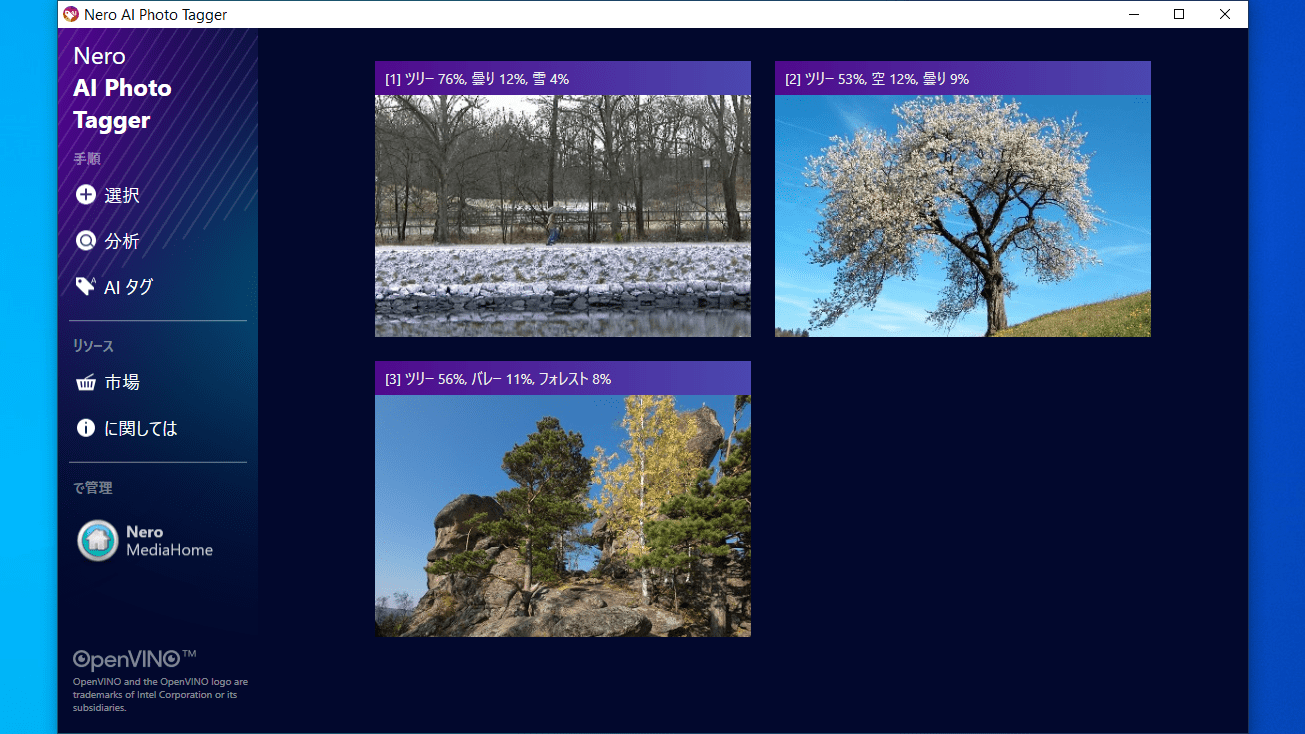
Nero AI Photo Tagger は、人工知能(AI)機能を使用して、JPG 画像に自動的にタグを付けることを可能にするアプリケーションです。選択したフォルダ内の複数の画像に対して一括タグ付けを行うことができます。
画像にタグを付けることで画像を整理でき、画像をタグ情報で検索できるようになります。
使い方はかんたんです
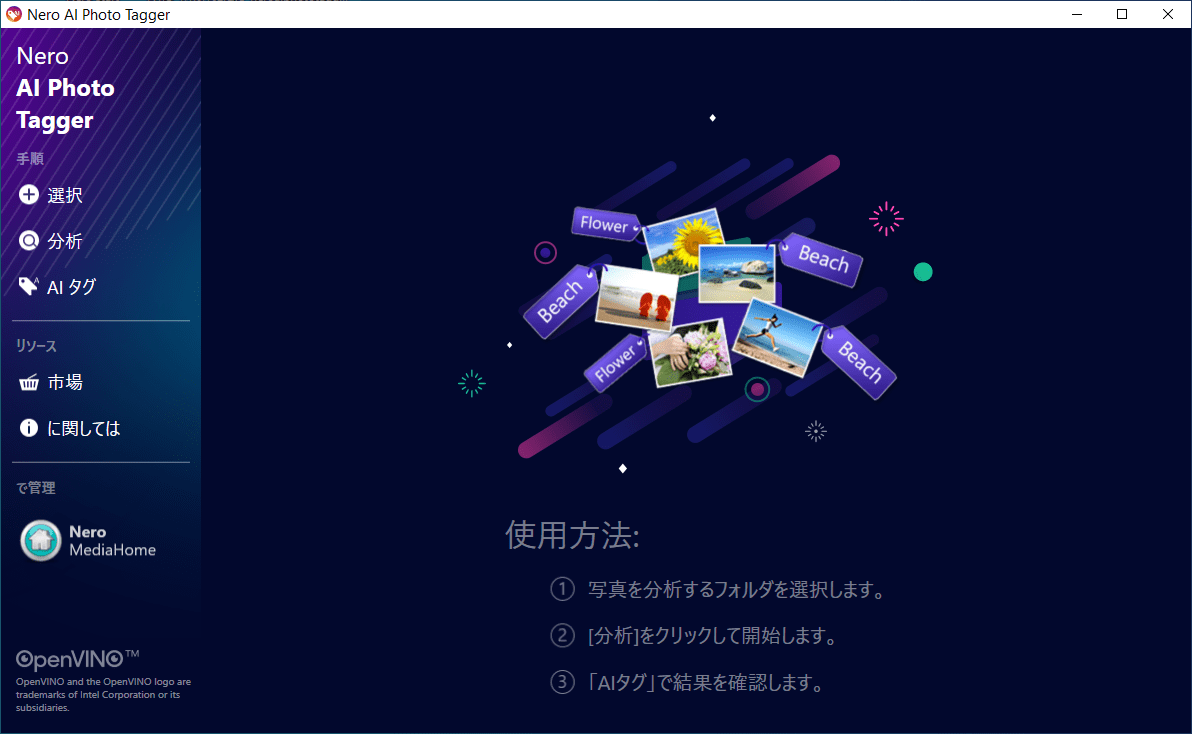
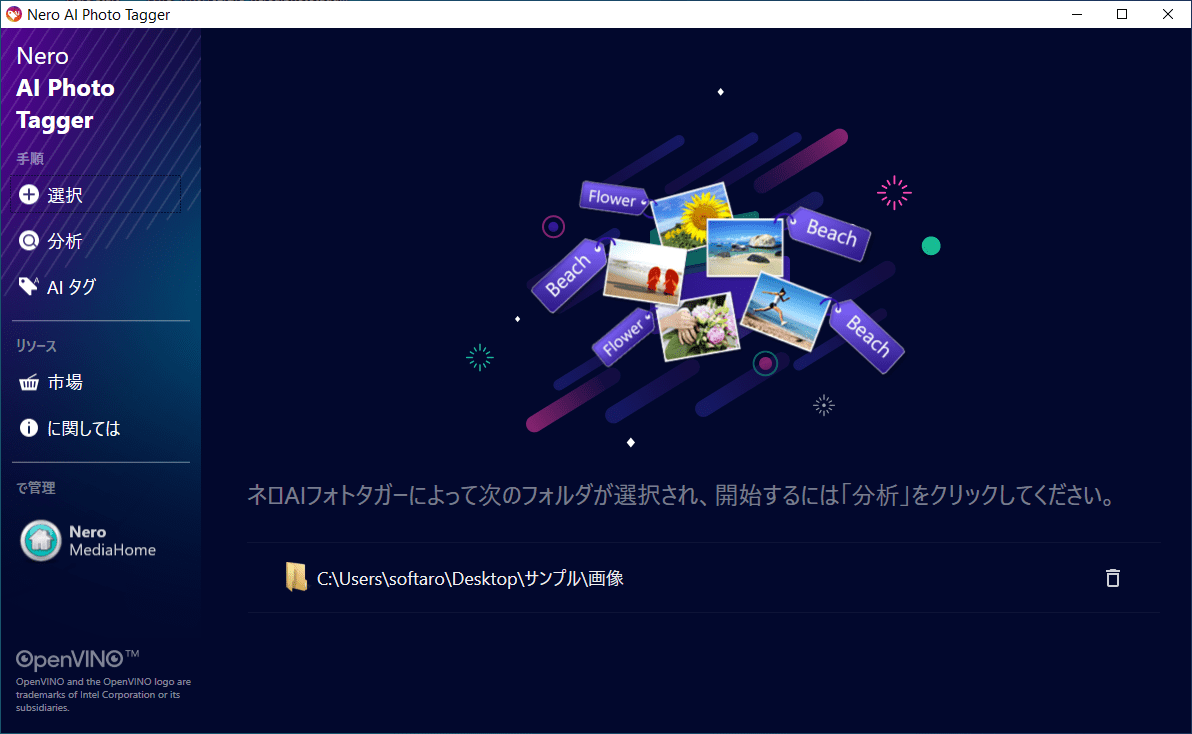
Nero AI Photo Tagger の使い方はかんたんで、最初に画像が含まれているフォルダを選択して追加し、次に分析をクリックして画像をスキャンするだけです。
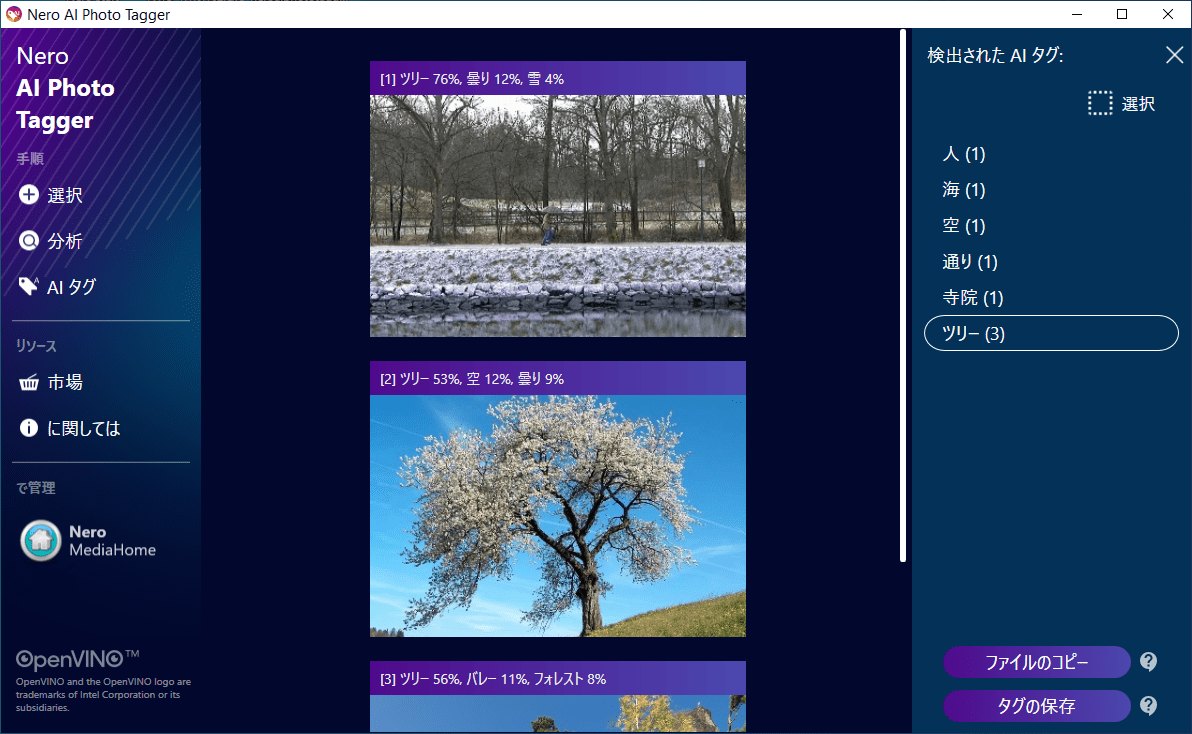
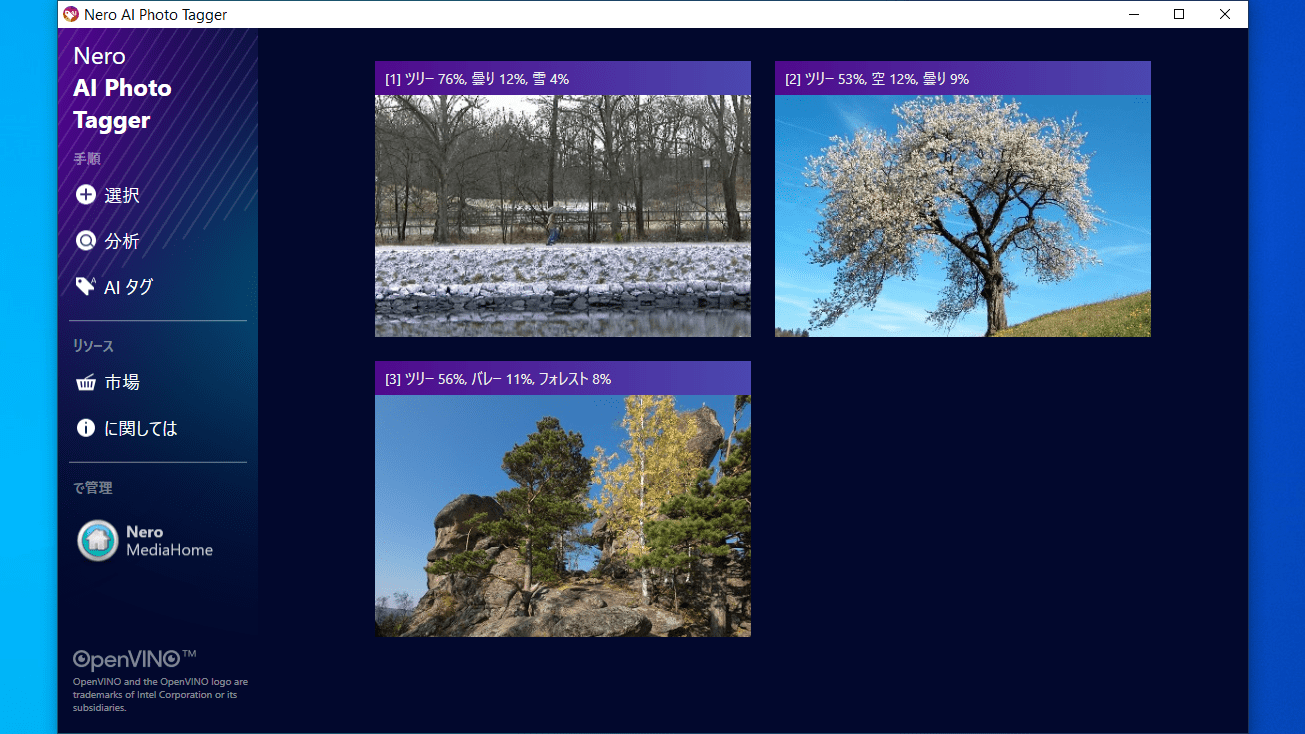
スキャンが完了すると、検出されたタグと画像が表示されるので、確認して「タグを保存」ボタンをクリックするとすべてのタグを画像に保存できます。
かんたんに使用できる画像ファイルタグ付けアプリ
Nero AI Photo Tagger は、画像ファイルへのタグ付けを自動化する便利なアプリケーションです。ただし、画像ファイルには日本語ではなく「Person」「Tree」「Sea」といったような英単語でタグ付けがされるのでご了承ください。
価格:無料
動作環境:Windows 7|8|8.1|10|11
使用言語:日本語ほか
最終更新日:
5年前 (2021/07/15)
ダウンロード数:739
画像

ユーザーインターフェース

フォルダの選択

分析結果

結果の確認

タグの保存
使い方
インストール
1.インストール方法
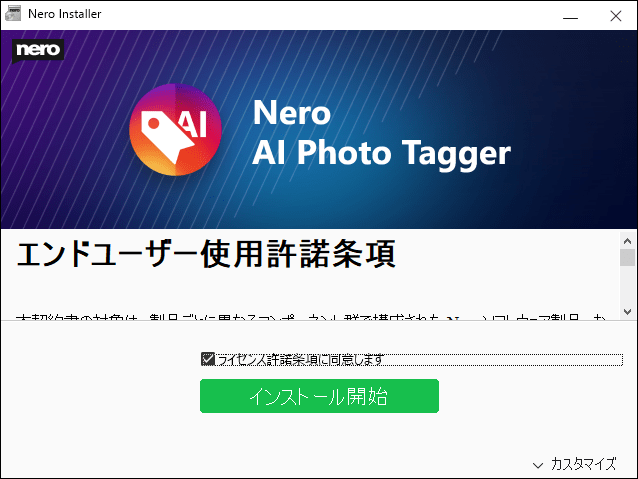
- インストーラを実行したら、「ライセンス条項に同意します」をチェックして[インストール開始]をクリックします。
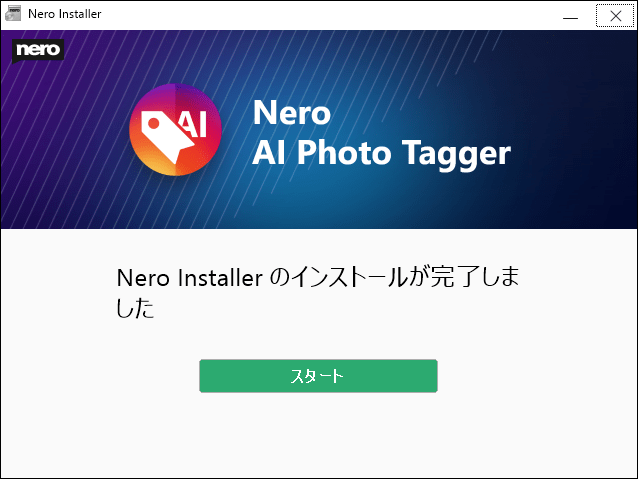
- インストールが完了しました。[スタート]をクリックします。
2.起動時の確認
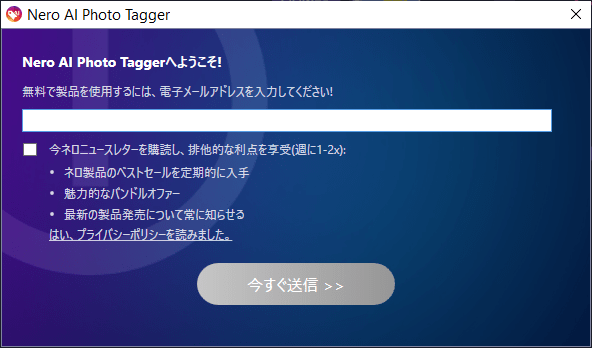
アプリケーションを使用するには、メールアドレスの入力が必要です。
- 「Nero AI Photo Tagger」を起動したら、メールアドレスを入力して[今すぐ送信]をクリックします。
基本的な使い方
1.画像にタグを付ける
- Nero AI Photo Tagger を起動したら、左のメニューの「選択」をクリックして画像ファイルのフォルダを選択します。

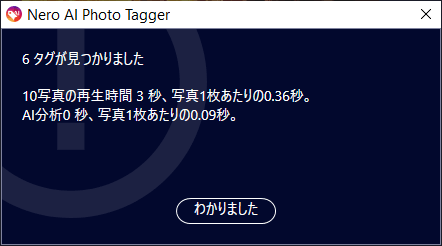
- 「分析」をクリックして画像を分析します。結果が表示されたら[わかりました]をクリックします。

- 右側のリストから、検出されたタグと画像を確認できます。

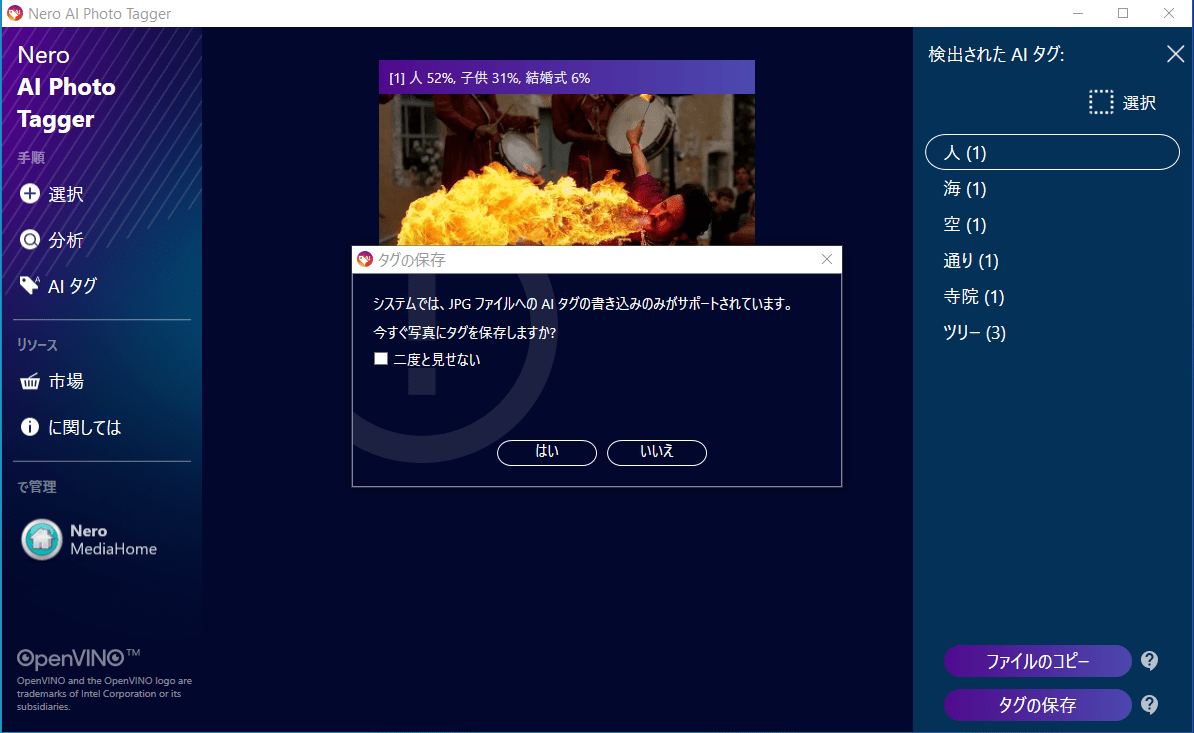
- 右下の[タグの保存]ボタンをクリックし、確認画面の[はい]をクリックするとタグを保存できます。

2.タグについて
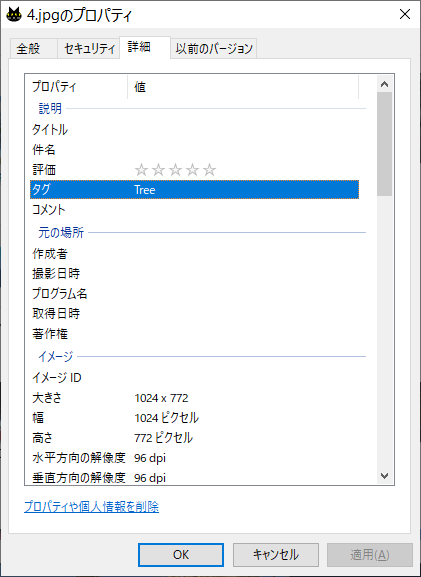
画像ファイルのタグはファイルの「プロパティ」の「詳細」タブで確認できます。
- Nero AI Photo Tagger タグを付けると英語のタグが追加されます。
よくある質問と回答
ライセンスについて。
Nero AI Photo Tagger は、どなたでも無料で使用できます。