").attr(n.scriptAttrs||{}).prop({charset:n.scriptCharset,src:n.url}).on("load error",i=function(e){r.remove(),i=null,e&&t("error"===e.type?404:200,e.type)}),C.head.appendChild(r[0])},abort:function(){i&&i()}}});var Jt,Kt=[],Zt=/(=)\?(?=&|$)|\?\?/;ce.ajaxSetup({jsonp:"callback",jsonpCallback:function(){var e=Kt.pop()||ce.expando+"_"+jt.guid++;return this[e]=!0,e}}),ce.ajaxPrefilter("json jsonp",function(e,t,n){var r,i,o,a=!1!==e.jsonp&&(Zt.test(e.url)?"url":"string"==typeof e.data&&0===(e.contentType||"").indexOf("application/x-www-form-urlencoded")&&Zt.test(e.data)&&"data");if(a||"jsonp"===e.dataTypes[0])return r=e.jsonpCallback=v(e.jsonpCallback)?e.jsonpCallback():e.jsonpCallback,a?e[a]=e[a].replace(Zt,"$1"+r):!1!==e.jsonp&&(e.url+=(At.test(e.url)?"&":"?")+e.jsonp+"="+r),e.converters["script json"]=function(){return o||ce.error(r+" was not called"),o[0]},e.dataTypes[0]="json",i=ie[r],ie[r]=function(){o=arguments},n.always(function(){void 0===i?ce(ie).removeProp(r):ie[r]=i,e[r]&&(e.jsonpCallback=t.jsonpCallback,Kt.push(r)),o&&v(i)&&i(o[0]),o=i=void 0}),"script"}),le.createHTMLDocument=((Jt=C.implementation.createHTMLDocument("").body).innerHTML="
",2===Jt.childNodes.length),ce.parseHTML=function(e,t,n){return"string"!=typeof e?[]:("boolean"==typeof t&&(n=t,t=!1),t||(le.createHTMLDocument?((r=(t=C.implementation.createHTMLDocument("")).createElement("base")).href=C.location.href,t.head.appendChild(r)):t=C),o=!n&&[],(i=w.exec(e))?[t.createElement(i[1])]:(i=Ae([e],t,o),o&&o.length&&ce(o).remove(),ce.merge([],i.childNodes)));var r,i,o},ce.fn.load=function(e,t,n){var r,i,o,a=this,s=e.indexOf(" ");return-1").append(ce.parseHTML(e)).find(r):e)}).always(n&&function(e,t){a.each(function(){n.apply(this,o||[e.responseText,t,e])})}),this},ce.expr.pseudos.animated=function(t){return ce.grep(ce.timers,function(e){return t===e.elem}).length},ce.offset={setOffset:function(e,t,n){var r,i,o,a,s,u,l=ce.css(e,"position"),c=ce(e),f={};"static"===l&&(e.style.position="relative"),s=c.offset(),o=ce.css(e,"top"),u=ce.css(e,"left"),("absolute"===l||"fixed"===l)&&-1<(o+u).indexOf("auto")?(a=(r=c.position()).top,i=r.left):(a=parseFloat(o)||0,i=parseFloat(u)||0),v(t)&&(t=t.call(e,n,ce.extend({},s))),null!=t.top&&(f.top=t.top-s.top+a),null!=t.left&&(f.left=t.left-s.left+i),"using"in t?t.using.call(e,f):c.css(f)}},ce.fn.extend({offset:function(t){if(arguments.length)return void 0===t?this:this.each(function(e){ce.offset.setOffset(this,t,e)});var e,n,r=this[0];return r?r.getClientRects().length?(e=r.getBoundingClientRect(),n=r.ownerDocument.defaultView,{top:e.top+n.pageYOffset,left:e.left+n.pageXOffset}):{top:0,left:0}:void 0},position:function(){if(this[0]){var e,t,n,r=this[0],i={top:0,left:0};if("fixed"===ce.css(r,"position"))t=r.getBoundingClientRect();else{t=this.offset(),n=r.ownerDocument,e=r.offsetParent||n.documentElement;while(e&&(e===n.body||e===n.documentElement)&&"static"===ce.css(e,"position"))e=e.parentNode;e&&e!==r&&1===e.nodeType&&((i=ce(e).offset()).top+=ce.css(e,"borderTopWidth",!0),i.left+=ce.css(e,"borderLeftWidth",!0))}return{top:t.top-i.top-ce.css(r,"marginTop",!0),left:t.left-i.left-ce.css(r,"marginLeft",!0)}}},offsetParent:function(){return this.map(function(){var e=this.offsetParent;while(e&&"static"===ce.css(e,"position"))e=e.offsetParent;return e||J})}}),ce.each({scrollLeft:"pageXOffset",scrollTop:"pageYOffset"},function(t,i){var o="pageYOffset"===i;ce.fn[t]=function(e){return M(this,function(e,t,n){var r;if(y(e)?r=e:9===e.nodeType&&(r=e.defaultView),void 0===n)return r?r[i]:e[t];r?r.scrollTo(o?r.pageXOffset:n,o?n:r.pageYOffset):e[t]=n},t,e,arguments.length)}}),ce.each(["top","left"],function(e,n){ce.cssHooks[n]=Ye(le.pixelPosition,function(e,t){if(t)return t=Ge(e,n),_e.test(t)?ce(e).position()[n]+"px":t})}),ce.each({Height:"height",Width:"width"},function(a,s){ce.each({padding:"inner"+a,content:s,"":"outer"+a},function(r,o){ce.fn[o]=function(e,t){var n=arguments.length&&(r||"boolean"!=typeof e),i=r||(!0===e||!0===t?"margin":"border");return M(this,function(e,t,n){var r;return y(e)?0===o.indexOf("outer")?e["inner"+a]:e.document.documentElement["client"+a]:9===e.nodeType?(r=e.documentElement,Math.max(e.body["scroll"+a],r["scroll"+a],e.body["offset"+a],r["offset"+a],r["client"+a])):void 0===n?ce.css(e,t,i):ce.style(e,t,n,i)},s,n?e:void 0,n)}})}),ce.each(["ajaxStart","ajaxStop","ajaxComplete","ajaxError","ajaxSuccess","ajaxSend"],function(e,t){ce.fn[t]=function(e){return this.on(t,e)}}),ce.fn.extend({bind:function(e,t,n){return this.on(e,null,t,n)},unbind:function(e,t){return this.off(e,null,t)},delegate:function(e,t,n,r){return this.on(t,e,n,r)},undelegate:function(e,t,n){return 1===arguments.length?this.off(e,"**"):this.off(t,e||"**",n)},hover:function(e,t){return this.on("mouseenter",e).on("mouseleave",t||e)}}),ce.each("blur focus focusin focusout resize scroll click dblclick mousedown mouseup mousemove mouseover mouseout mouseenter mouseleave change select submit keydown keypress keyup contextmenu".split(" "),function(e,n){ce.fn[n]=function(e,t){return 0
Inpaint 11.0
画像編集
2021/05/06 11:422024/09/02 09:51
説明 機能 仕様 ダウンロード 画像 使い方
写真から不要な部分を除去して自動修正する画像処理ソフト
画像から必要ない部分を自然に除去することができる、Windows および Mac 向けの画像/写真修正ソフト。風景から人を消したり、ウォーターマークを削除したり、肌のシワやシミを消したり、古い写真を修復することができます。
Inpaint の概要
Inpaint は、写真の選択した領域を、周囲の画像データから取得したインテリジェントに生成されたテクスチャで魔法のように塗りつぶし、必要のないオブジェクトを除去することができます。
Inpaint の機能
Inpaint の主な機能です。
機能
概要
メイン機能
画像から不要なオブジェクトを除去する
機能詳細
・写真から透かしを削除する
・写真から日付スタンプを削除する
・写真から不要な人を削除する … など
写真から不要な部分をかんたんに除去できます
Inpaint は、写真から不要なオブジェクトを削除することができるアプリケーションです。
例えば、風景写真から人や電線を削除したり、写真の透かしやタイムスタンプ、テキストなどを削除したり、ぼかしや修正部分を除去したり、パノラマ写真などの写真の余白の黒い部分をごく自然に埋めることができます。
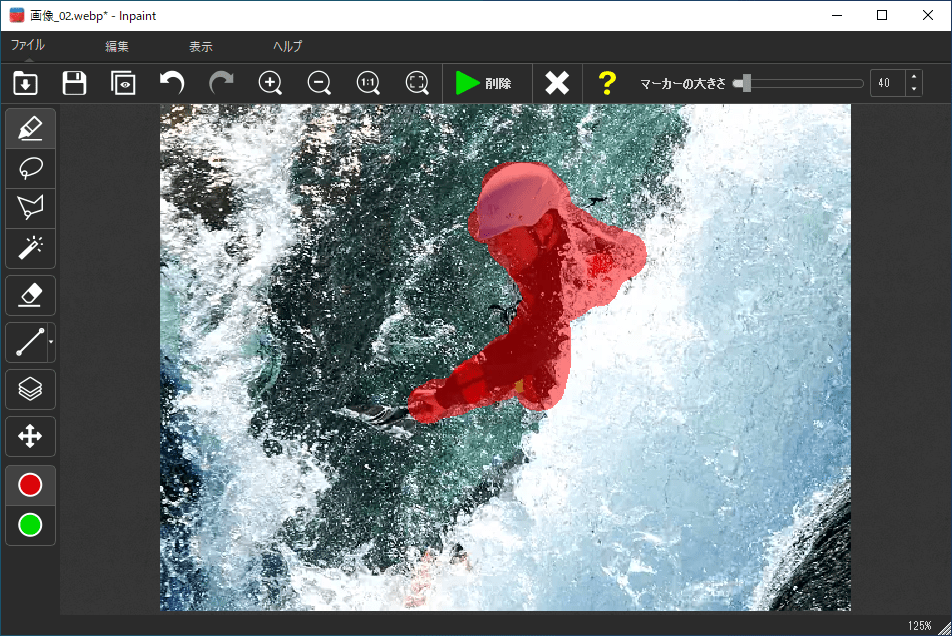
使い方は極めてかんたんで、写真の除去したい部分をマーカーで塗りつぶしてボタンをクリックするだけです。
複雑な修正作業を一瞬で行うことができるソフト
Inpaint を使用すると、通常では何時間もかかる作業を一瞬で行うことができる、便利な画像修正アプリです。このアプリケーションは無料で使用可能なデモ版です。すべての編集機能を利用することができますが、画像は保存することができません。また、「TRY IT ONLINE 」からオンラインバージョンのアプリを試すこともできます。
機能
古い写真を修復する
透かしを削除する
不要なオブジェクトを削除する
デジタルフェイシャルレタッチ
日付スタンプを削除します
しわや肌のシミを消します
旅行写真から観光客を削除する
パノラマの黒い領域を埋める
画像からテキストまたはロゴを削除する
価格: 無料
動作環境: Windows 7|8|8.1|10・Mac・iOS
使用言語: 日本語ほか
最終更新日:
2年前 (2024/09/02)
ダウンロード数: 1513
画像
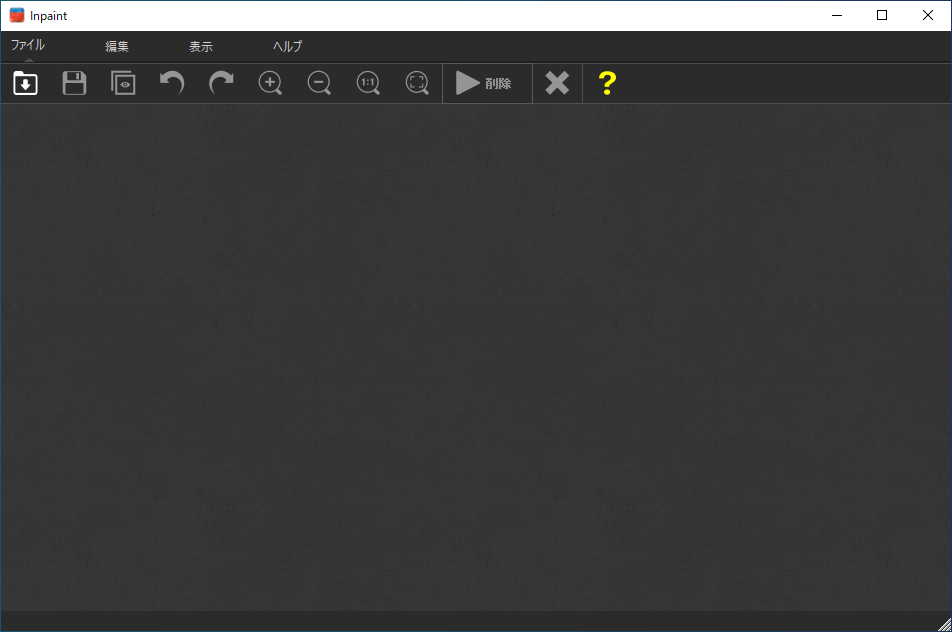
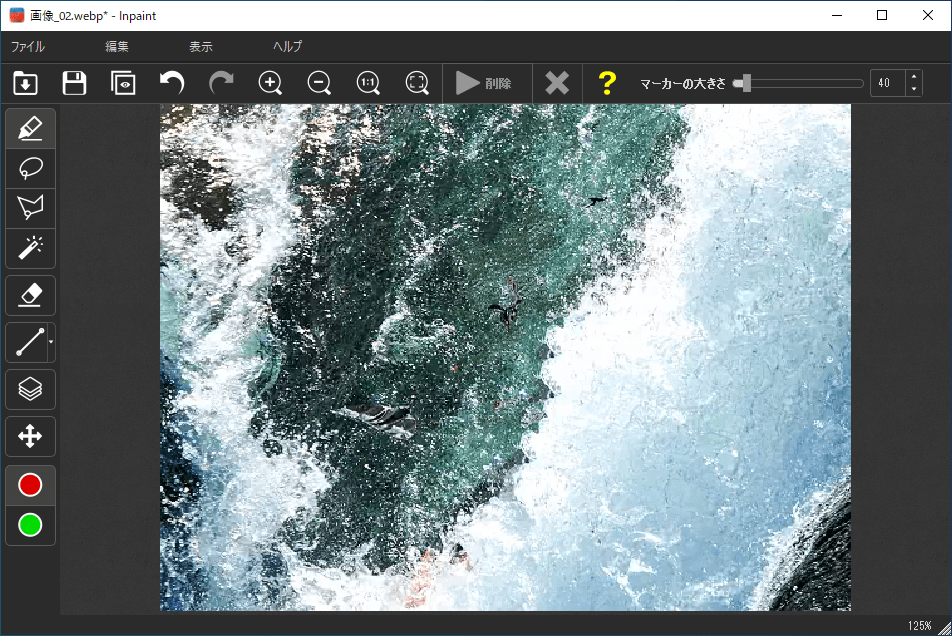
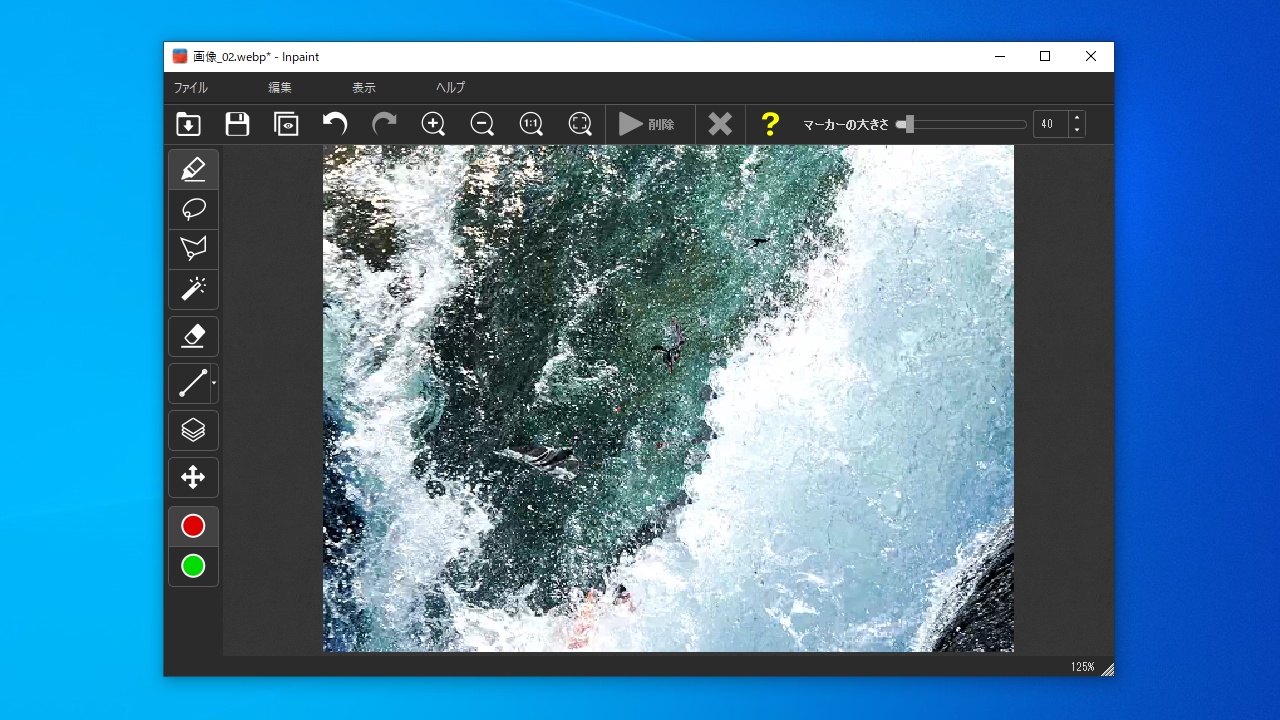
ユーザーインターフェース
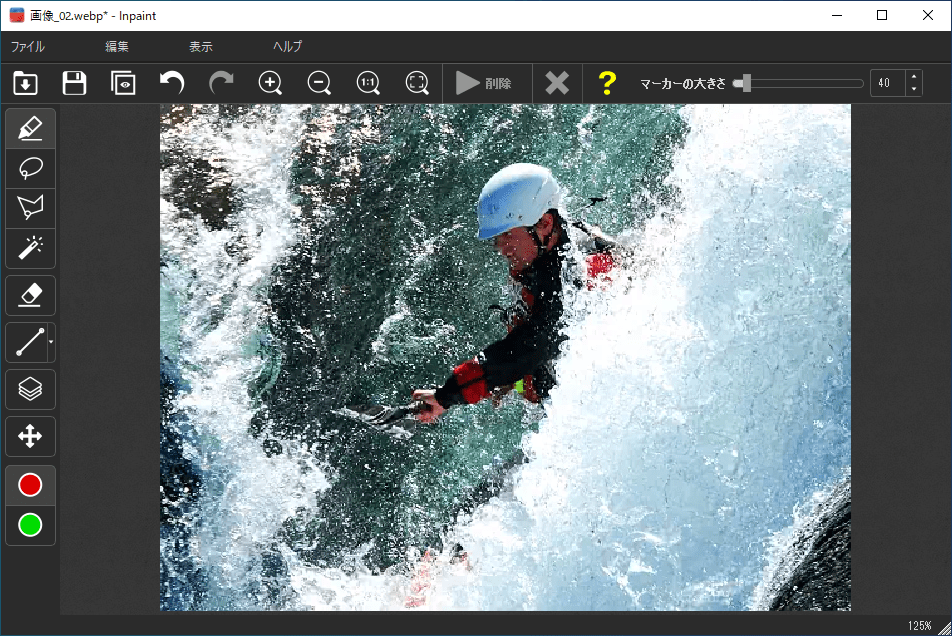
画像の入力
処理
完了後の画像

使い方
インストール
1.インストール方法
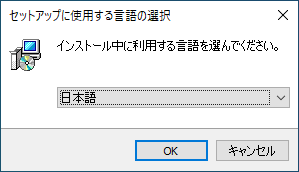
インストーラを実行したら、言語を選択して[OK ]をクリックします。
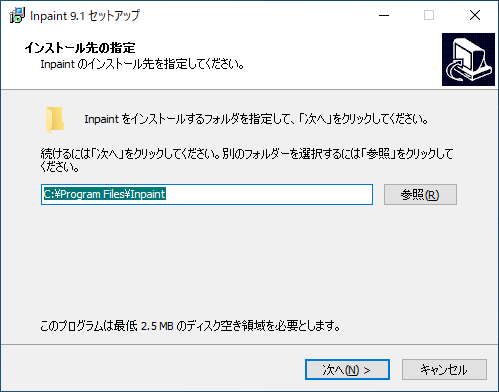
インストール先を指定して[次へ ]をクリックします。
インストールの準備ができました。[インストール ]をクリックしてインストールを開始します。
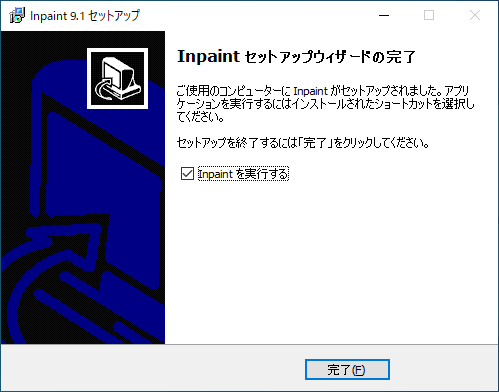
インストールが完了しました。[完了 ]をクリックしてセットアップウィザードを閉じます。
基本的な使い方
1.基本的な使い方
ツールバーの一番左のアイコンをクリックし、編集したい画像ファイルを選択して追加します。
ツールバーの「削除 」をクリックすると、処理が完了します。
よくある質問と回答
ライセンスについて。
ユーザーレビュー
レビューはまだありません、 最初のレビューを投稿してください。コメントは任意です。
Inpaint はデモ版のソフトウェアです。無料で編集の機能が利用できますが、保存する機能は利用できません。